If you want to improve your website’s visibility on Google, Yoast SEO for WordPress is one of the most powerful and beginner-friendly SEO plugins available. Whether you’re running a blog, business website, or WooCommerce store, properly setting up Yoast SEO can significantly improve your rankings, traffic, and click-through rate.
In this comprehensive guide, you’ll learn how to install, configure, and use Yoast SEO in WordPress correctly, even if you’re a complete beginner.
What Is Yoast SEO in WordPress?
Yoast SEO is a popular WordPress SEO plugin that helps website owners optimise their content for search engines such as Google and Bing. It provides real-time SEO analysis, readability checks, XML sitemaps, schema markup, and tools to manage meta titles and descriptions.
Key Benefits of Yoast SEO:
- Easy on-page SEO optimisation
- Automatic XML sitemap creation
- Meta title & description control
- Readability analysis
- Canonical URL management
- Schema (structured data) support
Yoast SEO is available in both free and premium versions, making it suitable for beginners and advanced users alike.
How to Install Yoast SEO Plugin in WordPress
Installing Yoast SEO correctly ensures your website has the essential SEO tools needed to appear in search engine results.
Step-by-Step Installation:
Follow these steps to add Yoast SEO to your WordPress site without any technical knowledge.
- Log in to your WordPress Dashboard
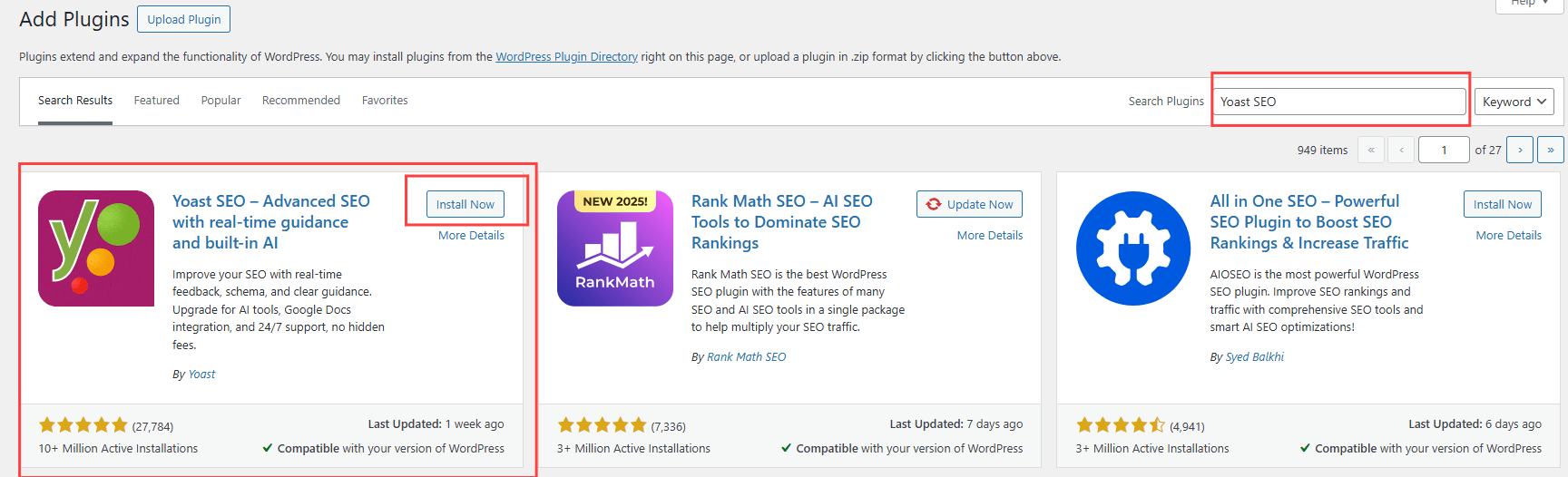
- Go to Plugins → Add New.
- Search for Yoast SEO
- Click Install Now
- Click Activate
Once activated, you’ll see a new SEO menu in your WordPress dashboard, where you can begin configuring Yoast SEO settings.
How to Set Up Yoast SEO for WordPress (Correctly)
After installation, Yoast SEO provides an Installation Wizard that helps configure essential settings for better search visibility.
Step 1: Run the Yoast SEO Configuration Wizard
This step ensures that Yoast SEO aligns with your website’s basic structure and goals.
- Go to SEO → General → First-time configuration.
- Follow the guided steps carefully.
Step 2: Site Representation Settings
Setting up site representation helps search engines clearly understand who owns and manages the website.
Choose whether your website represents:
- An Organisation (business, company, brand)
- A Person (personal blog or portfolio)
Add the following details to strengthen brand recognition:
- Website name
- Logo
- Social media profiles
This information improves brand trust and search ranking.
Step 3: Search Appearance Settings
These settings control how your website pages appear in Google search results.
Homepage Settings:
Optimising your homepage metadata improves your click-through rates in search results.
- Add an SEO title
- Write a compelling meta description.
- Include your primary keyword naturally.
Content Types:
Controlling indexing prevents low-value pages from appearing in search results.
- Enable SEO for posts and pages.
- Disable indexing for unnecessary pages (e.g., media attachments)
Step 4: XML Sitemap Setup
XML sitemaps help search engines discover and index your website faster.
To enable and submit your sitemap:
- Go to SEO → General → Features
- Enable XML sitemaps
- Submit the sitemap to Google Search Console
This ensures search engines can crawl your site efficiently.
Does Yoast SEO create a sitemap?
Yes, Yoast SEO automatically generates and updates an XML sitemap.
Need help setting up Yoast SEO correctly?
Many WordPress sites lose traffic due to misconfigured SEO settings. If you want your Yoast SEO setup reviewed for indexability, crawl efficiency, and search visibility, professional support can help avoid costly mistakes.
Request a Yoast SEO Setup Review
How to Use Yoast SEO in WordPress (Post Optimisation)
Yoast SEO appears below the WordPress editor for every post and page to guide on-page optimisation.
How to Optimise a Post with Yoast SEO
Following these steps helps improve rankings while maintaining strong readability.
- Add a Focus Keyphrase
- Write an SEO-friendly SEO title.
- Create a clear and relevant Meta Description.
- Optimise the URL slug.
- Improve the Readability score.
- Add internal and external links.
A green indicator in Yoast SEO signals that the content meets recommended SEO standards.
How to Add Meta Description in WordPress Using Yoast SEO
A well-written meta description encourages users to click your page when it appears in search results.
Steps to Add a Meta Description:
Follow these steps to control how your page is described on Google.
- Scroll to the Yoast SEO box under your post or page.
- Click Edit Snippet
- Write a meta description (120–155 characters)
- Include your primary keyword naturally.
Meta descriptions don’t directly affect rankings, but they significantly improve click-through rates, which can lead to better SEO performance over time.
Yoast SEO Premium Features (Why Upgrading Matters)
Yoast SEO Premium adds advanced tools that save time, prevent SEO errors, and help your content rank more effectively as your website grows.
| Premium Feature | What It Does | Why It Matters for SEO |
|---|---|---|
| AI-powered SEO titles & meta descriptions | Generates optimized titles and descriptions using AI | Speeds up content creation while maintaining SEO best practices |
| Multiple focus keyphrases | Optimize content for more than one keyword | Helps rank for related and long-tail keywords |
| Internal linking suggestions | Recommends relevant internal links while writing | Improves site structure and crawlability |
| Redirect manager | Creates automatic redirects for changed URLs | Prevents broken links and 404 SEO errors |
| Orphan content detection | Finds pages with no internal links | Ensures important content isn’t ignored by search engines |
| Social media previews | Preview how posts appear on Facebook & X | Improves social click-through rates |
| Google Docs SEO add-on | Optimize content before publishing | Saves time and ensures SEO consistency |
| 24/7 premium support | Direct access to Yoast SEO experts | Faster issue resolution and peace of mind |
| Extra security & AI bot controls | Blocks unwanted AI scraping | Protects original content and site performance |
Yoast SEO Free vs Premium (Which One Should You Choose?)
Understanding the differences between the free and premium versions helps you decide which option best meets your website’s needs.
| Feature | Free | Premium |
|---|---|---|
| Focus key phrase | 1 | Multiple |
| Internal linking suggestions | ✖ | ✔ |
| Redirect manager | ✖ | ✔ |
| Orphan content detection | ✖ | ✔ |
| 24/7 support | ✖ | ✔ |
Yoast SEO Free is ideal for beginners, but Yoast SEO Premium is best for businesses, professional bloggers, and WooCommerce sites that want stronger SEO control and scalability.
Does Yoast SEO Slow Down WordPress?
Website speed is a critical ranking factor, so it’s important to understand how SEO plugins affect performance.
No — Yoast SEO does not slow down WordPress when properly configured.
The plugin is lightweight, well-coded, and trusted by millions of websites worldwide. It runs most of its processes in the WordPress admin area, not on the front end, which means visitors don’t experience performance slowdowns.
In most cases, performance issues are caused by factors unrelated to Yoast SEO, such as:
- Poor hosting – Low-quality servers struggle to handle WordPress efficiently
- Too many plugins – Excessive or poorly coded plugins increase load time.
- Large, unoptimised images – Heavy images slow down page rendering
When paired with good hosting, caching, and image optimisation, Yoast SEO works smoothly without impacting site speed.
Common Yoast SEO Issues & Fixes
Even though Yoast SEO is reliable and widely used, configuration conflicts or WordPress settings can sometimes cause issues. Understanding these common problems — and how to fix them — helps maintain consistent SEO performance.
Yoast SEO Not Showing in WordPress
When Yoast SEO does not appear in the WordPress dashboard or post editor, it usually indicates a plugin conflict, caching issue, or permission restriction.
How to fix it:
- Clear cache – Caching plugins can prevent new plugin features from displaying correctly
- Disable conflicting plugins – Security, page builders, or duplicate SEO plugins may block Yoast.
- Check user permissions – Ensure your user role has administrator access.
Duplicate SEO Titles
Duplicate titles confuse search engines and can reduce click-through rates in search results. This problem often occurs when both the theme and an SEO plugin generate titles.
How to fix it:
- Disable SEO settings in your theme – Many themes include built-in SEO options.
- Use only one SEO plugin – running multiple plugins can cause overlapping metadata.
Sitemap Not Updating
An outdated sitemap can prevent search engines from discovering new or updated content.
How to fix it:
- Resave permalinks – Go to Settings → Permalinks and click Save
- Clear cache – Cached files may serve an old sitemap version
- Check Google Search Console errors – Look for crawl or sitemap submission issues.
Most Yoast SEO issues are configuration-related, not plugin defects. Keeping WordPress, themes, and plugins up to date — and avoiding overlapping SEO tools — ensures Yoast SEO runs smoothly and effectively.
How Yoast SEO Handles Canonical URLs
Canonical URLs prevent duplicate content issues by telling search engines which version of a page to index. Yoast SEO automatically generates canonical tags for posts, pages, categories, and archives based on your site structure.
Advanced users can manually override canonical URLs within the Yoast SEO meta box when dealing with pagination, filtered URLs, or syndicated content. Correct canonical usage ensures ranking signals are consolidated rather than split across duplicate URLs.
Managing Noindex, Nofollow, and Advanced Robots Meta with Yoast SEO
Yoast SEO provides precise control over search engine behaviour through robots meta directives. These settings are useful for excluding low-value or sensitive pages from search results.
Advanced use cases include:
- Noindexing internal search results pages
- Preventing tag archives from being indexed
- Applying nofollow to pages with untrusted outbound links
These controls help maintain a clean index and improve overall crawl efficiency.
Breadcrumb Schema & Site Structure Optimisation with Yoast SEO
Yoast SEO generates breadcrumb navigation and schema markup that improve search engines’ understanding of site structure. Breadcrumbs help Google understand page hierarchy and may appear in rich search results.
Advanced optimisation includes enabling breadcrumbs, adding them to your theme, and ensuring category hierarchy aligns with keyword intent. Proper breadcrumb implementation strengthens internal linking and enhances UX.
Advanced Schema Control Using Yoast SEO
Yoast SEO automatically outputs structured data using JSON-LD for articles, webpages, organisations, and authors. This helps search engines interpret content context and eligibility for rich results.
Advanced users can customise the schema per post by adjusting content types, turning off the default schema on specific pages, or combining Yoast schema with custom schema plugins. Proper schema management increases eligibility for enhanced SERP features.
Crawl Budget Optimisation with Yoast SEO
Crawl budget refers to how efficiently search engines crawl your website. Yoast SEO helps optimise crawl budget by controlling indexing, removing low-value URLs, and managing XML sitemaps.
Advanced strategies include:
- Noindexing thin content
- Reducing parameter-based URLs
- Managing pagination and archives
Efficient crawl allocation improves indexing speed for important pages.
Integrating Google Search Console with Yoast SEO (Advanced Use)
Yoast SEO integrates directly with Google Search Console to surface crawl errors and indexing issues in WordPress. This integration helps identify technical SEO problems early.
Advanced users can monitor coverage issues, sitemap status, and crawling errors to maintain site health. Regular monitoring prevents long-term ranking losses caused by unnoticed technical problems.
Redirect Strategy & URL Change Management with Yoast SEO
The redirect manager in Yoast SEO Premium helps manage URL changes safely. Redirects preserve link equity when pages are deleted, renamed, or consolidated.
Advanced redirect strategies include:
- Using 301 redirects for permanent changes
- Avoiding redirect chains
- Consolidating outdated content into authoritative pages
Correct redirect handling prevents traffic loss and indexing issues.
Yoast SEO and JavaScript-Based Content (Technical Considerations)
Yoast SEO works with JavaScript-heavy WordPress themes, but advanced users should ensure content is server-side rendered or crawlable. Search engines may delay indexing JavaScript-rendered elements.
Technical best practices include:
- Avoiding hidden content loaded after user interaction
- Ensuring critical SEO elements load in HTML
- Testing rendering using Google Search Console
Handling Pagination and Archive SEO with Yoast SEO
Yoast SEO automatically manages rel= “next” and rel= “prev” handling internally while controlling archive indexing. Proper pagination prevents duplicate content issues on category and blog archive pages.
Advanced users should evaluate whether archives add search value and no-index those that do not. Clean archive management improves crawl efficiency and ranking focus.
Multilingual & International SEO with Yoast SEO
Yoast SEO supports multilingual SEO when paired with plugins like WPML or Polylang. It helps manage hreflang tags and language-specific metadata.
Advanced international SEO requires:
- Correct hreflang implementation
- Region-based targeting
- Language-specific sitemaps
Proper configuration ensures the correct language version appears in search results.
Yoast SEO is not just a beginner plugin—it provides powerful technical controls when used correctly. Advanced optimisation focuses on crawl efficiency, structured data, indexing control, and site architecture, not just keywords.
Adding these sections positions your guide as an expert-level resource rather than a basic tutorial.
Best Practices for Yoast SEO in 2026
Search engine optimisation continues to evolve, and using Yoast SEO effectively in 2026 requires focusing on user experience, content quality, and technical accuracy rather than shortcuts or outdated tactics.
Write for Users, Not Just Search Engines
Search engines increasingly reward content that genuinely answers user intent. While Yoast SEO provides optimisation guidance, your primary goal should always be to deliver clear, helpful, and engaging content for real users.
Avoid Keyword Stuffing
Overusing keywords can harm readability and lead to ranking penalties. Instead, use your focus keyphrase naturally, supported by related terms and synonyms, to maintain relevance without compromising content quality.
Use Internal Linking Strategically
Internal links help search engines understand your site structure and distribute link equity across important pages. Yoast SEO’s internal linking suggestions make it easier to strengthen topical relevance and improve crawlability.
Optimise Images with Alt Text
Image optimisation improves accessibility and helps search engines understand visual content. Descriptive alt text also supports image search visibility and enhances overall page SEO.
Combine Yoast SEO with High-Quality Content
Yoast SEO is a powerful optimisation tool, but it cannot replace valuable content. Well-researched, original, and user-focused content remains the foundation of successful SEO.
SEO Is a Long-Term Strategy — Consistency Matters
SEO results build over time through consistent publishing, regular optimisation, and ongoing performance monitoring. Following best practices steadily will produce sustainable rankings and long-term organic traffic growth.
Need Professional WordPress SEO & Yoast Setup?
Configuring Yoast SEO correctly and achieving consistent search rankings requires technical accuracy and strategic optimisation.
If you’re struggling with Yoast SEO setup or want to improve your website’s organic performance, I provide professional WordPress SEO services, including:
- Yoast SEO setup and advanced configuration
- On-page SEO optimisation for content and pages
- Technical SEO audits and issue resolution
- Keyword research aligned with search intent.
Get expert support to ensure your WordPress site is fully optimised for search engines and long-term growth.
Contact me today for a free SEO audit and consultation.
Frequently Asked Questions (FAQ)
What is Yoast SEO in WordPress?
Yoast SEO is a WordPress plugin that helps optimise websites for search engines by managing on-page SEO elements. It allows users to control meta titles, descriptions, XML sitemaps, and structured data from within WordPress. The plugin also provides real-time content and readability analysis.
How does Yoast SEO work in WordPress?
Yoast SEO analyses content against SEO best practices and provides actionable recommendations. It evaluates keyword usage, metadata, internal links, readability, and technical SEO settings. These insights help align content with search engine requirements.
How do you set up Yoast SEO correctly in WordPress?
Yoast SEO is set up using its configuration wizard, which guides users through essential site and SEO settings. The process includes defining site representation, search appearance, and sitemap preferences. Proper setup ensures search engines can crawl and index the site accurately.
Does Yoast SEO automatically create an XML sitemap?
Yes, Yoast SEO automatically generates an XML sitemap once the feature is enabled. The sitemap updates dynamically as new or updated content is published. This helps search engines discover and index pages efficiently.
Does Yoast SEO slow down WordPress websites?
No, Yoast SEO does not slow down WordPress when configured properly. It is optimised to run primarily in the admin environment rather than on the front end. Site performance issues are usually caused by hosting quality, excessive plugins, or unoptimised media.
What is the difference between Yoast SEO free and premium?
Yoast SEO Free provides core on-page optimisation and technical SEO features. Yoast SEO Premium adds multiple focus keyphrases, internal linking suggestions, redirect management, and orphan content detection. The premium version enhances workflow efficiency and SEO control.
How do you add a meta description using Yoast SEO?
A meta description is added through the Yoast SEO box below the WordPress editor. Users can edit the snippet preview and enter a custom description within the recommended character limit. This controls how the page appears in search results.
Can Yoast SEO be used on WordPress.com?
Yoast SEO can be used on WordPress.com sites that support plugin installation. This feature is available on higher-tier WordPress.com plans that allow third-party plugins. The plugin functions the same way as it does on self-hosted WordPress sites.
Is Yoast SEO good for beginners?
Yes, Yoast SEO is designed to be beginner-friendly while still supporting advanced SEO needs. Its visual indicators, guided setup, and clear recommendations make SEO easier to understand. Beginners can optimise content without needing technical expertise.
Is Yoast SEO enough for WordPress SEO on its own?
Yoast SEO handles on-page and technical SEO, but does not replace high-quality content or good site performance. Effective SEO also requires fast hosting, a well-structured site, and consistent content creation. Yoast SEO works best as part of a complete SEO strategy.