
If your products have vanished from Google Shopping and free listings, a Merchant Center misrepresentation suspension is the most likely cause. Most owners make it worse by clicking “Request review” too early and Google gives you only two review attempts before a progressive one week cooldown can lock you out. Here is the checklist we run on every store before we submit a single review request.
How do you fix a Google Merchant Center misrepresentation suspension? A Google Merchant Center misrepresentation suspension means Google doubts your store is open, honest and trustworthy. To fix it, correct your business details, policies, prices and site quality so they match your feed, then submit one complete review request. Google allows two attempts before a cooldown can start, so fix everything first.
What a Google Merchant Center misrepresentation suspension means
A Google Merchant Center misrepresentation suspension means Google suspects your store, your product feed or your business details could mislead shoppers, so it has switched off your Shopping and free listings until you resolve the concern. It is a trust verdict on the whole business rather than an error on one product, which is why patching a single page rarely clears it.
What Google’s misrepresentation policy covers
Google’s misrepresentation policy covers anything that hides, distorts or omits information a shopper needs before buying. The full text is on Google’s Misrepresentation policy page. It groups violations into six areas, unacceptable business practices, coordinated deceptive practices, dishonest pricing and transaction conditions, unavailable offers, manipulated media and unreliable claims.
The groups carry different consequences. The first three are treated as egregious and Google can suspend an account the moment it detects them, with no warning. The other three come with a warning at least seven days before any suspension. Google also looks well beyond your product pages. It may draw on your listings, website, accounts and third party sources when judging a merchant.
Why it triggers business identity, trust signals, mismatched data
Most suspensions come from a mismatch, where something Google sees in one place contradicts something it sees in another. The mismatches fall into three families.
Business identity Your name, address, phone number and email should read the same on your website and in Merchant Center. The policy names a false identity, a virtual headquarters address and hiding the true location products ship from as examples of deception. This is where dropshippers most often get caught. The policy’s concern is not the business model itself but concealing where goods ship from and how long delivery really takes.
Trust signals Clear returns, shipping and contact information tells Google a real business stands behind the store. Refusing returns that your own policy allows is listed as a violation. In our experience, an About page, genuine customer reviews and active social profiles also help a store look legitimate. These are not written requirements in the policy itself.
Mismatched data Prices, stock and delivery promises must hold up from feed to landing page to checkout. Google flags stores that show a fast delivery time prominently while burying a longer handling time in smaller text. It also flags totals that leave out taxes or fees and international return windows that start at the purchase date instead of delivery. Shoppers rarely notice these details, but automated reviews do.
Policy changes and what’s new in 2026
The latest formal change Google announced is its October 2025 clarification of the policy. That update added more examples of what the policy covers, more guidance on staying compliant and more detail on the appeals process. The live policy page now spells out transparency points that stores used to have to infer. These include disclosing fulfilment location, stating the full price and any return shipping costs and showing how long orders take to process.
For timing, Google typically gives a 7 or 28 day warning before suspending for non egregious issues and an account review can take up to two weeks. A suspended store can lose Shopping traffic for weeks, so it pays to get the fixes right before you ask for a review.
Don’t click “Request review” yet
Hold off on “Request review” until every issue on your site and feed is fixed and live, because a failed review counts against you and can lock the button behind a cooldown. The most common mistake we see is using the button to find out what is still wrong. That is what the checks in the next section are for.
How the review cooldown works
A suspended Merchant Center account gets two review requests before a cooldown can begin. After that, each unsuccessful review can bring a progressive one week cooldown. The account stays suspended throughout and you can not request another review until the period ends and the button comes back.
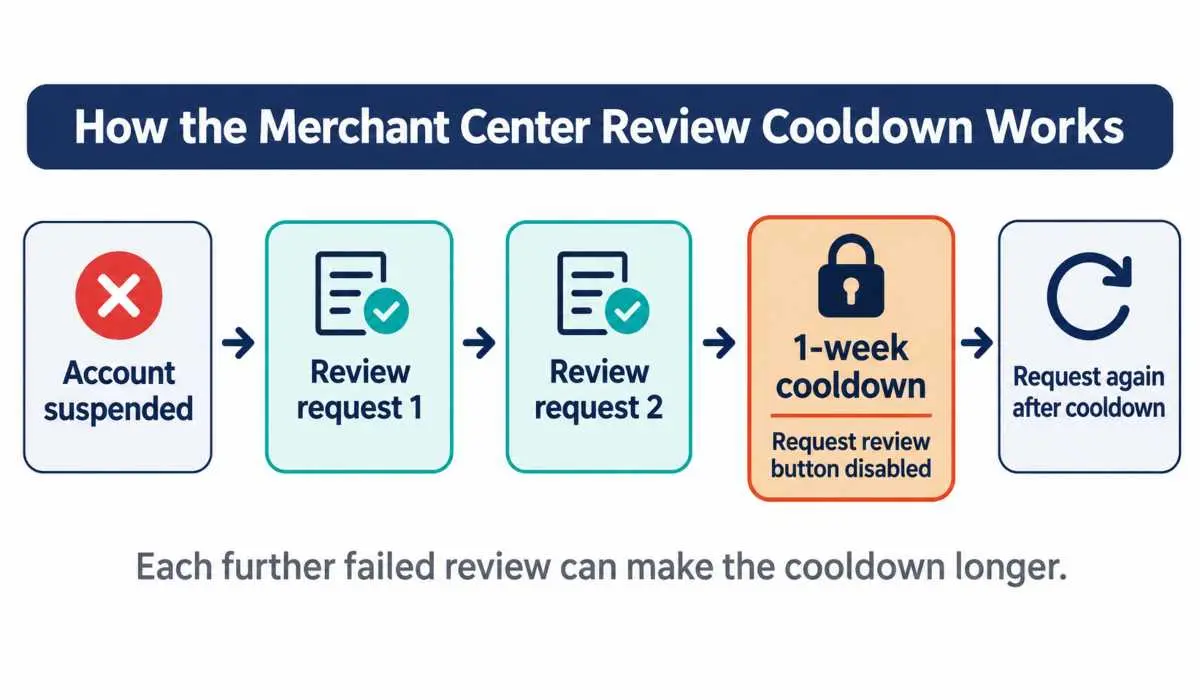
Merchant Center review requests and one week cooldown
Google’s advice for the waiting time is to use it to fix your account, product data and website. It also warns that support may be limited until those issues are addressed. In practice, a cooldown is a week or more of lost Shopping visibility with no way to speed it up. The rejection notice itself carries the warning. It says you may have to wait before requesting again, so check you meet the policies before re submitting.
Why one clean, complete request beats several quick ones
Google reviews your whole business, not one page, so a partial fix fails the same way as no fix. Google says a review can take up to two weeks and complex cases can take longer. Two rushed attempts can therefore cost up to a month of review time before any cooldown starts.
A clean request starts with the changes already in place. Google says to update your product data in Merchant Center or wait for your scheduled upload to run, before requesting a review. We also check that each fix is live on the pages Google actually crawls, such as the contact page, the policy pages and the checkout. A technical SEO crawl is the fastest way to confirm that Google can reach and read all of those pages.
Finally, we keep a short, dated record of what changed and where. Some appeals ask you to give a reason or upload supporting documents and a specific, factual account of the fixes is far easier for a reviewer to verify than a general claim that everything is now compliant. Submit once, with everything fixed, rather than learning the same lesson twice.
The 8 Things to Fix Before Requesting a Merchant Center review
Before you request a review, fix these eight areas, business identity, returns, shipping, checkout, price and stock accuracy, claims, trust pages and site quality. Together they cover what Google checks when it decides whether a store can be trusted. Work through them in order and capture evidence at each step, because those records become your proof for the review. Google’s own checkout guidance is blunt about the stakes, leaving out relevant information is itself treated as misrepresentation.
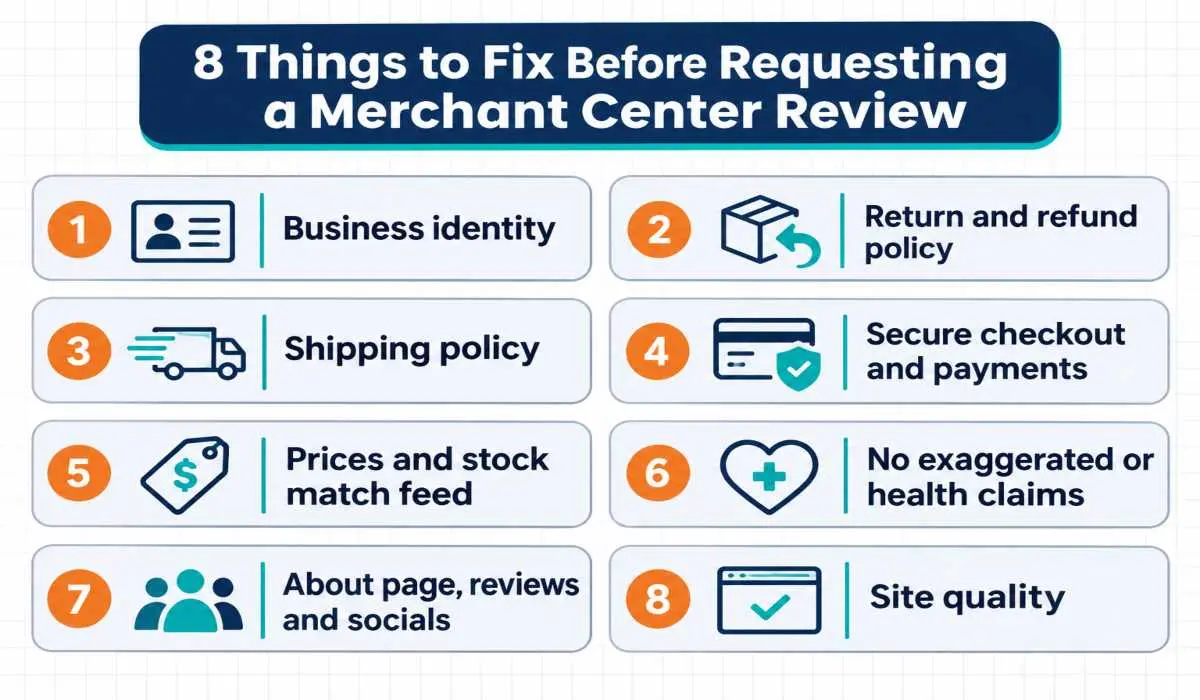
1. Business identity name, address, phone and email
Your business details must be the same everywhere Google can see them. Google expects accurate contact information on your site, including a phone number and/or an email address. Its policy lists a false identity or business name and a virtual headquarters address presented as the real one, as deceptive.
To check, open your contact page, footer, policy pages and checkout, then compare each against the business information saved in Merchant Center. Fix any difference in spelling, formatting or number, however small. On Shopify, remember to update the details in your theme footer and policy pages as well as in the admin. If you would rather have a specialist review the store, see our Shopify SEO services.
Dropshipping sub block, if a supplier ships your orders, say so plainly. Google’s trust guidance asks merchants to be open about their business model and how they operate. Don’t hide who fulfils your orders or where they ship from.
Evidence to save: Your Merchant Center business information beside your live contact page.
2. Return and refund policy
Google wants a clear, easy to find return policy even if you don’t accept returns. The policy should explain what the customer must do, when returns and refunds apply, how long they have and when the refund arrives. A store that accepts no returns must still say so explicitly. Hiding return costs for overseas customers or starting an international return window on the purchase date instead of delivery, also counts as a problem.
To check, start on a product page in a private browser window and count the clicks to your return policy. It should also be linked from your footer and your checkout. Then confirm your Merchant Center return settings match the page word for word.
Evidence to save: Your return policy page with its timeframe and refund steps visible.
3. Shipping policy costs, times and countries
Your shipping page, your Merchant Center settings and your checkout must tell the same story on costs, delivery times and countries served. Google flags stores that show a fast delivery estimate while burying a longer processing time in smaller text and stores that don’t disclose every shipping cost. You may overestimate shipping in Merchant Center, as long as it is never higher at checkout.
To check, run a test order to the final checkout step for each country you ship to and compare the cost and delivery window with your Merchant Center shipping settings.
Dropshipping sub block, give a delivery window that includes supplier processing time and state where goods ship from. Concealing the shipping origin to suggest local stock or fast delivery is a named violation.
Evidence to save: Your shipping policy next to the matching Merchant Center shipping settings.
4. Secure checkout and working payment methods
Every payment step must run on a valid HTTPS connection and a shopper must be able to finish a purchase. Google requires an SSL secured checkout and any third party payment options must also be HTTPS and shouldn’t ask for unnecessary personal details such as credit check information. Shoppers must also be able to add products to the cart and complete the order.
To check, run a full test purchase on desktop and on mobile in a private window and click through each payment method. Watch for security warnings, broken buttons and payment options that fail. If your browser shows a security warning at checkout, confirm that your SSL certificate is valid and covers every checkout page.
Evidence to save: Your checkout page showing the secure padlock and the available payment methods.
5. Prices and stock match the product feed
The price and availability in your feed must match what a shopper sees on the product page and at checkout. Google tells merchants to keep the product data source consistent with the website, including prices. The price should also stay consistent through the whole checkout, not only between the feed and the landing page. Listing items as available when you can’t fulfil the orders is a policy violation.
To check, sample ten to twenty products and compare the price, currency, tax treatment and stock status in the feed with the live page. Also check how often your feed syncs. UK prices normally need VAT included, while US prices are shown before sales tax.
Evidence to save: A product page beside its feed row in the Merchant Center.
6. No exaggerated or health claims
Remove any claim that promises an unrealistic result or a medical outcome you can’t substantiate. The policy bans claims that tempt shoppers with improbable outcomes even if those outcomes are possible and it names miracle cures and extreme weight loss products as examples. Supplements, skincare and wellness products are the most exposed.
To check, search your whole site for words like “cure”, “guaranteed”, “miracle”, “instant results” and “clinically proven”. Review titles, descriptions, banners and images, including before and after photos. Remove or rewrite anything you can’t prove.
Evidence to save: Your site wide search for these terms, showing the flagged pages before the edits.
7. About page, real reviews and social profiles
Google reads these pages as proof a real business stands behind the store. Its guidance recommends an About Us page, social profiles linked from your site, genuine reviews and testimonials and a clear route to customer support. It also points merchants to Google Customer Reviews or other review services to qualify for seller ratings.
To check, make sure your About page names who runs the business and where it is based. Your footer social links should lead to active profiles that use the same business name. Every review shown must be genuine and attributable to a real customer.
Evidence to save: Your About page with the footer social links visible.
8. Site quality, broken links, placeholder text and slow pages
An unfinished or broken site undermines every other fix. Google’s trust guidance warns that placeholder text and images make a website feel unfinished. Links in your listings must also lead straight to a page where the advertised product can be bought. Slow pages and broken links aren’t named in the policy, but in our experience they signal an unmaintained store.
To check, crawl the site for 404 errors, scan for “lorem ipsum”, “coming soon” and leftover demo products and test your key pages in PageSpeed Insights. Slow pages usually need speed optimisation, and broken links and outdated plugins are easiest to prevent with ongoing website maintenance. If your store runs on WooCommerce, our WooCommerce development and optimisation service covers both.
Evidence to save: Your crawl or PageSpeed report before and after the clean up.
How to request a review
To request a Merchant Center review, open Products, go to Needs attention, select the account issue, choose “I fixed the issue” and press “Request review”. Do this only once every fix from the checklist above is live on your site and in your feed. Google emails you when the review is requested and again when it is completed.
The click path in Merchant Center
Go to Products in Merchant Center, select the Needs attention tab, then choose View setup and policy issues. For each issue, select “I fixed the issue” or “I disagree with the issue”, then select “Request review”. Pick “I fixed the issue” when you have corrected the problem. You may only get one chance to disagree with an issue, so keep that option for a decision you genuinely believe is wrong.
You can also reach the request from the Diagnostics page, under the Account issues tab. Click “Request review”, read the pop up that explains the review process and its limits, tick the box and confirm. Menu names change from time to time, so follow the labels you see in your own account.
If your store lists products through a platform, the request may need to happen there. On Shopify, go to Sales channels, open Google, select the Settings tab and click “Request re review”, then complete the form and submit it. Google says that if you list through a third party platform, you should check that platform for its review options.
What to have ready before you click
Do a final pass before you submit. Confirm that your contact details, policies, prices and stock match across your site and Merchant Center. Google also says to update your product data manually or wait for your scheduled upload to run before requesting a review, so check that the latest feed has been processed.
Keep a short, dated record of what you changed and the pages affected, with the evidence you saved while working through the eight fixes. If a form or appeal step asks for a reason or documents, a specific list of fixes is far easier for a reviewer to check than a general statement that everything is compliant. Submit once, because the review is the moment your two attempts start to count.
What happens after you submit
Your status will change to “Review requested” and then “Under review”. Google says the review may take up to two weeks and the status shows in Merchant Center or in your third party application. You don’t need to do anything during the wait and you shouldn’t edit your policies or feed back and forth while the reviewer is looking at them.
If the review is not approved, read the new notice carefully before you act. If your issues aren’t resolved by the second review attempt, a one week cooldown may begin. You can see when it ends under Diagnostics, in the Account issues tab. Use that time to find what still doesn’t match.
Evidence to save: The Merchant Center screen showing “Under review”, with the date of your request.
What we usually find on a suspended store
When a store owner sends us a misrepresentation notice, the cause is almost never one big problem. It is usually three or four small mismatches that together make Google doubt the store. The ones we see most often:
- The contact page contains a different address or phone number than what is listed in Merchant Center.
- The return policy has no timeframe or is linked only from the footer.
- The shipping page promises fast delivery, while supplier processing adds several days.
- Feed prices or stock no longer match the product pages, often after a sale ends.
- Product pages make health or results claims the store cannot prove.
None of these looks serious on its own. Fixed together and documented in one review request with dates and URLs, they give the reviewer a store that is ready to be trusted. Google makes the final decision every time, so we never promise reinstatement.
When to call a pro
Call a pro when you have already failed a review, when you can’t find what Google objects to or when every week offline is costing you more than the fix. A misrepresentation suspension is rarely a quick job and the stakes rise with each failed attempt. Google allows two review requests before a progressive one week cooldown can begin and a review can take up to two weeks. A store that rushes two attempts can lose weeks of Shopping sales before it gets another chance.
A specialist shortens that path because the work is mostly diagnosis. At IT LEADZ, we check all eight points in this guide against your live site, Merchant Center settings and product feed. We then fix what is wrong in both places and prepare a single, clean review request that documents every change with dates and URLs. Nothing is submitted until the site and feed agree with each other and with Google’s policy. This work sits within our wider ecommerce SEO services, so the fixes also support your store’s organic visibility.
You may be fine handling it yourself if Google’s notice points to one obvious problem and you haven’t used up any review attempts. Bring in help if you’ve already been rejected, if you run a dropshipping or multi country store or if you simply can’t spare the time. No one can guarantee reinstatement, because Google makes the final decision on every review. What we can do is make sure that decision is based on a store that is ready for it. Once your store is back on Shopping, an ecommerce digital marketing agency can help you turn that restored traffic into steady sales. Support with Merchant Center suspensions is free with IT LEADZ SEO Packages. If your products have disappeared from Shopping, message us on WhatsApp with your store URL and the suspension notice and we will tell you where to start.
Frequently Asked Questions (FAQs)
How long does a misrepresentation review take?
A misrepresentation review can take up to two weeks. That is Google’s own estimate on its “Request a review” help page and Merchant Center sends an email when the review is completed. Some platform guides quote a shorter seven day window, so plan for the longer one. Use the wait to double check your fixes, not to change them.
Can I just open a new Merchant Center account?
No. Opening a new account to escape a suspension is treated as bypassing Google’s enforcement and it usually makes things worse. Google’s own suspension notice warns that related Merchant Center accounts may also be suspended. Shopline’s Merchant Center guidance classes this as circumventing systems, which Google treats as one of its most serious violations. Fix and review the original account instead.
Does dropshipping cause misrepresentation?
Dropshipping does not cause it by itself. The policy targets deception, not the business model. It names hiding where products ship from, creating a false impression of local stock or fast delivery and listing items you can’t fulfil as violations. Dropshipping stores get flagged when they hide their supplier origin, promise unrealistic delivery times or show stock they can’t supply. Be open about all three and you are on safe ground.
Will an app fix it?
An app cannot fix a misrepresentation suspension on its own, because the suspension judges your business and website, not just your feed. A feed app can keep prices and stock in sync, which helps, but it can’t correct your policies, contact details or claims. Google’s steps are to fix the website, update your product data and only then request a review. Google also warns that manipulating product data or site content to get around its checks violates its Abuse of the network policy. If you list through a platform such as Shopify, you may need to request the review there rather than in the Merchant Center.
How many times can I request a review?
You get two review requests and then cooldowns begin. After two opportunities, each unsuccessful review can trigger a progressive one week cooldown. Your account stays suspended during it and you can’t request another review until the period ends. Read the message in your own Merchant Center account before each attempt and treat every request as if it could be your last.