Shopify product page SEO is the practice of optimizing each product page in your store so search engines can understand it and shoppers want to buy from it. The main elements are the product title, unique description, URL handle, meta tags, images with alt text, structured data, reviews and page speed.
What Is Shopify Product Page SEO?
Shopify product page SEO is the work of making an individual product URL easy for search engines to interpret and persuasive for the shopper who lands on it. Product pages catch people searching for a specific item, brand or model, which is some of the strongest buying intent in search.
Shopify gives every store a sitemap, canonical tags and SSL by default. It does not write your titles, choose your keywords or describe your products, so those decisions stay with you. For the store-wide process, our guide on how to do SEO for Shopify covers the full sequence, and this page focuses on the product page itself. If you want the broader context first, start with what ecommerce SEO is.
Why product pages matter for rankings and sales
Product pages matter because they capture the searches closest to a purchase. Someone typing a specific product name, model or “waterproof hiking backpack 30l” already knows what they want, so a page that ranks for that query meets a buyer at the point of decision. Collection pages and blog posts bring people in earlier, but the product page is where the sale is won or lost.
The same page affects both rankings and revenue. Search engines judge it on clarity, originality and page experience, while shoppers judge it on speed, detail and trust. Google research found that 53% of mobile visits are abandoned when a page takes longer than three seconds to load, so a slow product page loses the sale and weakens the page experience search engines look at. Improving one improves the other.
What Shopify handles automatically vs what you must do
Shopify handles the technical groundwork, and you handle everything that depends on knowing your products and your customers. Out of the box, every store gets an automatically updated XML sitemap, a default robots.txt, canonical tags that point product variants and collection paths back to the main product URL, an SSL certificate, mobile-responsive themes and fast image delivery. Most current themes also output basic Product markup with name, price and availability.
The work that moves rankings is left to you:
- Choosing a primary keyword for each product
- Writing original titles, descriptions and meta descriptions, since Shopify fills these in from the page content if you leave them blank
- Adding image alt text
- Linking each product to its collection and related items
- Keeping the theme and apps lean so pages stay fast
- Redirecting discontinued products
Shopify’s fixed /products/ URL prefix can’t be changed, so the handle, title and copy you control carry more weight.
Shopify Product Page SEO Best Practices
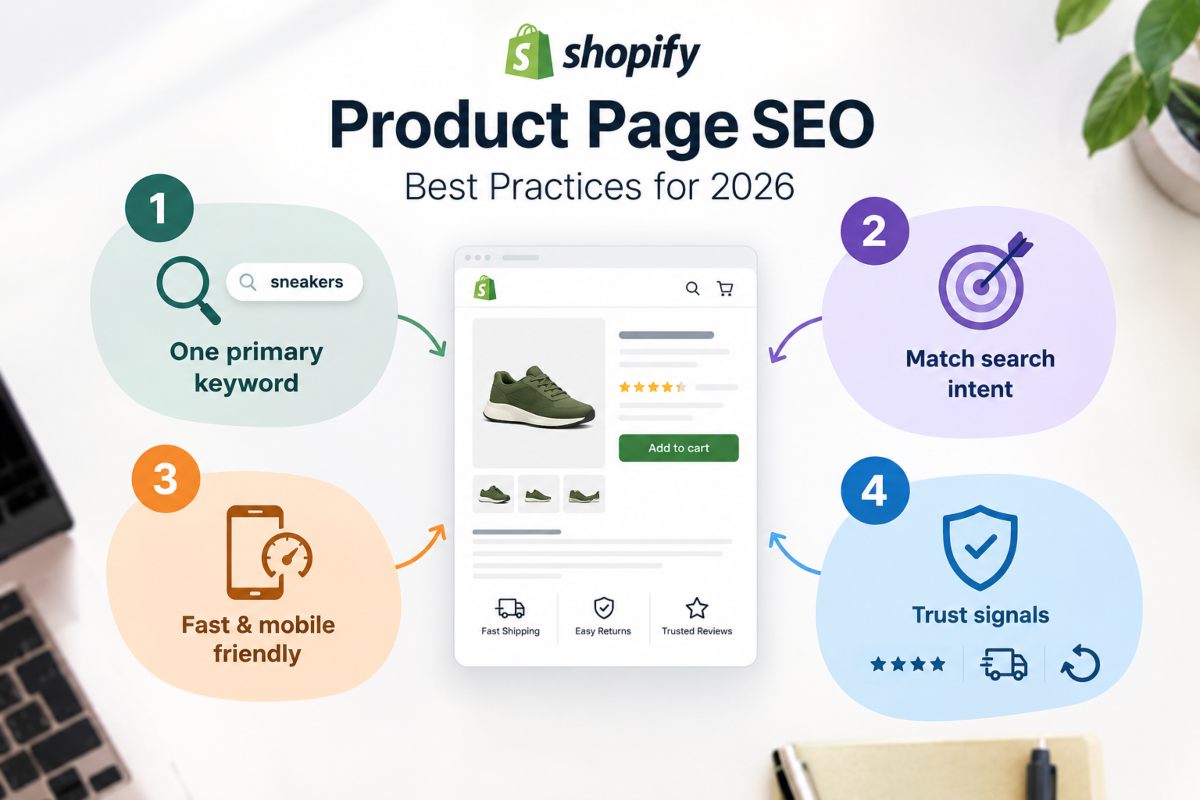
The best practices for Shopify product page SEO are to give every product its own keyword, build the page around what the buyer wants, keep it quick on a phone, and put proof of a safe purchase where shoppers can see it.
One primary keyword per product
Each product page should target one main keyword, the phrase a shopper would most likely type when looking for that exact item. For a hiking bag, that might be “waterproof hiking backpack 30l” rather than the broader “backpack.” Place it in the title, the URL handle and the opening lines of the description, and let related terms appear naturally in the rest of the copy.
Keep that keyword exclusive to the page. If a second product or a collection targets the same phrase, your own pages compete and neither ranks as well as one clear page would. A simple sheet pairing each product URL with its keyword makes overlaps easy to spot. Color and size options belong on the same page as variants, not on separate URLs chasing the same term.
Match search intent to the product
A product page ranks best when it answers what the searcher actually wants, which is usually to compare details and buy one specific item. Check the top results for your keyword before writing. If Google shows mostly collection pages, the term is too broad for a single product, and you should aim the page at a narrower phrase such as a model, material or use case.
Then build the page around the questions a buyer has before purchasing. Cover what the product does, who it suits, how it fits or performs, what it is made from, how to care for it and when it will arrive. A page that settles those questions keeps shoppers from returning to the results to look elsewhere.
Keep pages fast and mobile-friendly
A Shopify product page should load quickly and read easily on a phone, because most store visitors browse on mobile and Google evaluates the mobile version of your page. Slowness usually comes from oversized gallery images, apps that keep running scripts after they are removed, and heavy sliders or video above the fold.
Compress images before uploading, keep the main gallery short, and remove apps you no longer use. Then test a few key product pages in PageSpeed Insights after every theme or app change, and check that buttons are easy to tap and pop-ups do not cover the product. For the wider checks that affect crawling and speed across the store, our Technical SEO guide covers what to review.
Build trust signals (reviews, shipping, returns)
Trust signals are the details that reassure a shopper that buying from you is safe, and the most powerful is customer reviews. Research from Northwestern University’s Spiegel Research Center found that a product with just five reviews is 270% more possible to be bought than one with none.
Show the star rating close to the product title and keep recent written reviews on the page. Alongside them, state delivery times, costs and your returns policy on the product page itself so shoppers do not have to leave to find them. These details improve conversion, and they also add fresh, relevant text that search engines can read.
How to Optimize a Shopify Product Page for SEO (Step by Step)
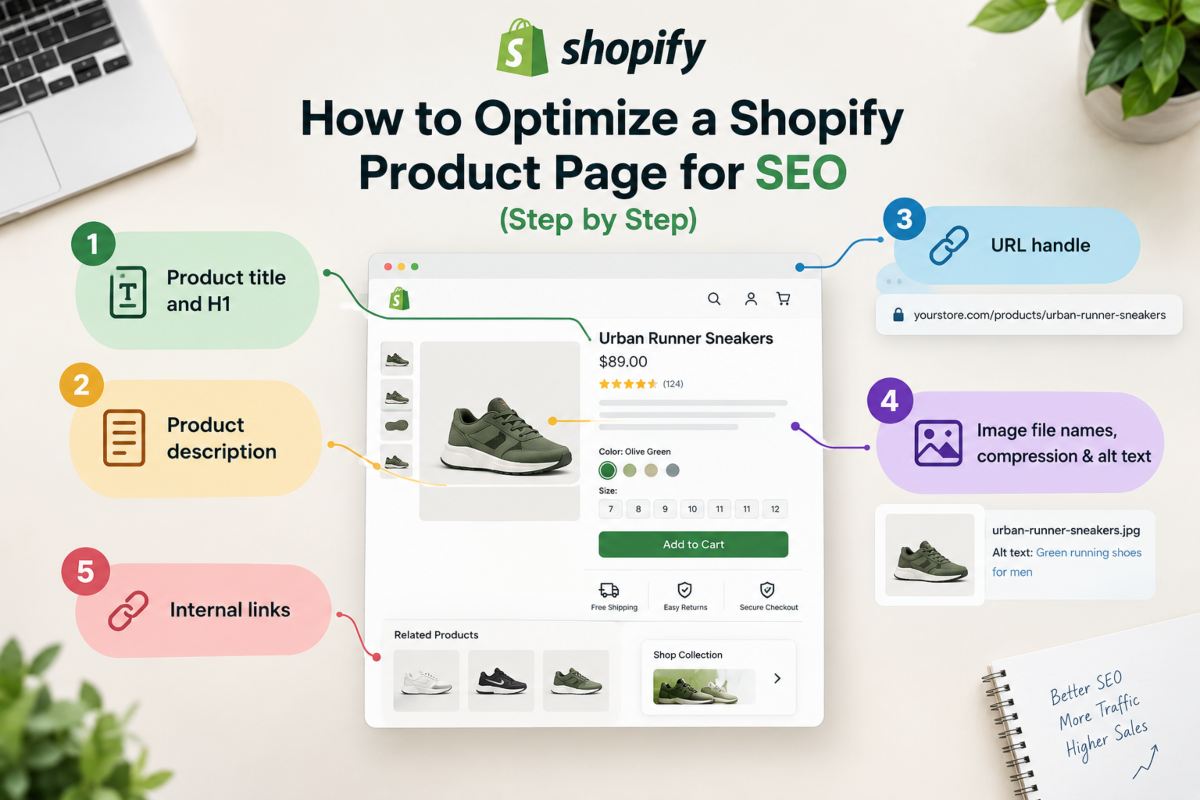
To optimize a Shopify product page for SEO, work through five elements in order: the title, the description, the URL handle, the images, and the internal links. Finish each one before starting the next so no page ends up half-optimized. This is the product-level side of On Page SEO, where every element you control tells search engines what the page is about.
Product title and H1
The product title is the main label for the page, and in most Shopify themes it also becomes the H1. Write it so a shopper understands the item at a glance: the product name, followed by one or two details that set it apart, such as brand, material, size or model. “Waterproof Hiking Backpack 30L” works because it is specific and reads naturally. A title stuffed with every variation of the keyword does not.
Keep one H1 per page and don’t duplicate it elsewhere in the description. If your theme shows the title in a different heading level, ask your developer to correct it, since a single clear H1 helps search engines identify the page’s main topic.
Product description (unique copy, features, benefits, sizing)
A product description should answer the shopper’s questions in plain language and be written specifically for your store. Copy supplied by a manufacturer appears on every retailer’s page, so search engines have no reason to favor yours. Open with what the product is and who it suits, then cover features, the benefit each one brings, materials, sizing or fit guidance, care instructions and delivery details.
Pair each feature with what it means for the buyer. “Padded shoulder straps” is a feature, while “stays comfortable on long walks” is the benefit. Use short paragraphs, and add a small specification list only when numbers or measurements are easier to scan that way. Work the primary keyword into the first paragraph naturally, and let the length follow what a buyer needs to know.
URL handle
The URL handle is the final part of the product’s address, and it should be short, lowercase, hyphenated and built around the product name. A handle such as waterproof-hiking-backpack-30l tells both people and search engines what the page contains. You edit it in the “Search engine listing” section of the product page, while Shopify fixes the /products/ prefix in front of it.
Choose the handle before the page goes live. Changing it later breaks existing links unless a redirect is in place, so keep the redirect option Shopify offers when you rename a handle on a published product.
Image file names, compression and alt text
Product images need descriptive file names, sensible compression and meaningful alt text. Google’s own image guidance recommends descriptive file names and alt text so it can understand what each image shows, which makes this one of the clearest on-page signals available. Rename files before upload, for example black-hiking-backpack-side-view.jpg instead of IMG_4821.jpg, and compress them so large originals don’t slow the page.
Write alt text as a short sentence describing what the image shows, such as “black 30-litre hiking backpack seen from the side.” Give each image in the gallery its own description rather than repeating the same text, and mention the product name only where it fits naturally. Purely decorative images can be left without alt text.
Internal links to collections and related products
Internal links connect the product page to the rest of your store and help search engines and shoppers find it. Link every product to its parent collection through breadcrumbs, and add links to related products, such as accessories or alternatives. A relevant buying guide is another good link target when you have one.
Use descriptive anchor text, for example “women’s hiking backpacks” rather than “click here.” Most themes include a related products block, and Shopify’s free Search & Discovery app lets you adjust which products appear. A product that no page links to is hard for crawlers to discover, so confirm every product is reachable from at least one collection.
Shopify Product Page Title and Meta Description Best Practices
The best practice for a Shopify product page title is a clear, specific name of about 55 to 60 characters with the main keyword near the front. The meta description is a roughly 150 to 160 character summary that tells the shopper what the product is and why to click. Both are core parts of On Page SEO, because they are the first thing a searcher reads about your product.
Where to edit the Search engine listing section
You edit a product’s title and meta description in the “Search engine listing” section at the base of product page in Shopify admin. Open Products, select the product, scroll down, and click Edit beside the listing preview. The panel shows three fields: the page title, the meta description and the URL handle.
If you leave the title and description blank, Shopify fills them in from the product title and the start of the product description. That default is rarely as sharp as copy written for search, so fill in both fields for every product that matters. The same section exists on collections, pages and blog posts, and your homepage’s equivalent sits in the online store preferences.
Title length and keyword placement
A product page title should run to about 55 to 60 characters, with the primary keyword at or near the start and the brand name at the end. Google shortens titles by display width, not by character count, so 55 to 60 is a safe rule of thumb. Anything much longer risks being cut off mid-phrase in the results.
Lead with the words a shopper would type, then add one differentiating detail such as size, material or audience, and finish with your store name. Use the keyword once, in its natural form. Repeating it or adding variations such as “buy,” “cheap” and “best” in the same title reads as spam to shoppers, and it gives search engines no extra information.
Meta description formula
A reliable meta description formula has three parts: what the product is, one detail that sets it apart, and a reason to act now. Fit that into about 150 to 160 characters, and write it as a sentence a person would want to read, not a list of keywords.
Google’s documentation says it may show a different snippet than the one you wrote when other text on the page better matches the search. That means the description is an opportunity to earn the click and not a ranking lever, so write it to persuade and include the primary keyword naturally, since matching words are bolded in results. A strong example would be: “Carry more on longer trails with this lightweight 30L waterproof hiking backpack. Padded straps, built-in rain cover and free 30-day returns on every order.”
Examples of good vs weak titles
A weak title is vague, stuffed or missing the product details. “Backpack | My Store” tells a searcher almost nothing, and “Buy Best Cheap Hiking Backpack Waterproof Backpack Online” repeats itself and reads as spam. A third common weakness is a title left at its default, such as an internal product code or a manufacturer’s long model string.
A strong title is specific, readable and ordered by importance. “Waterproof 30L Hiking Backpack for Women | TrailNest Gear” names the product, size, audience and brand in 57 characters. For a clothing item, “Merino Wool Long Sleeve Base Layer for Men | TrailNest Gear” follows the same pattern: product first, detail second, brand last. Write a unique title for every product, because identical titles across a catalog make pages harder for search engines to tell apart.
How to Add Structured Data (Schema) to Shopify Product Pages
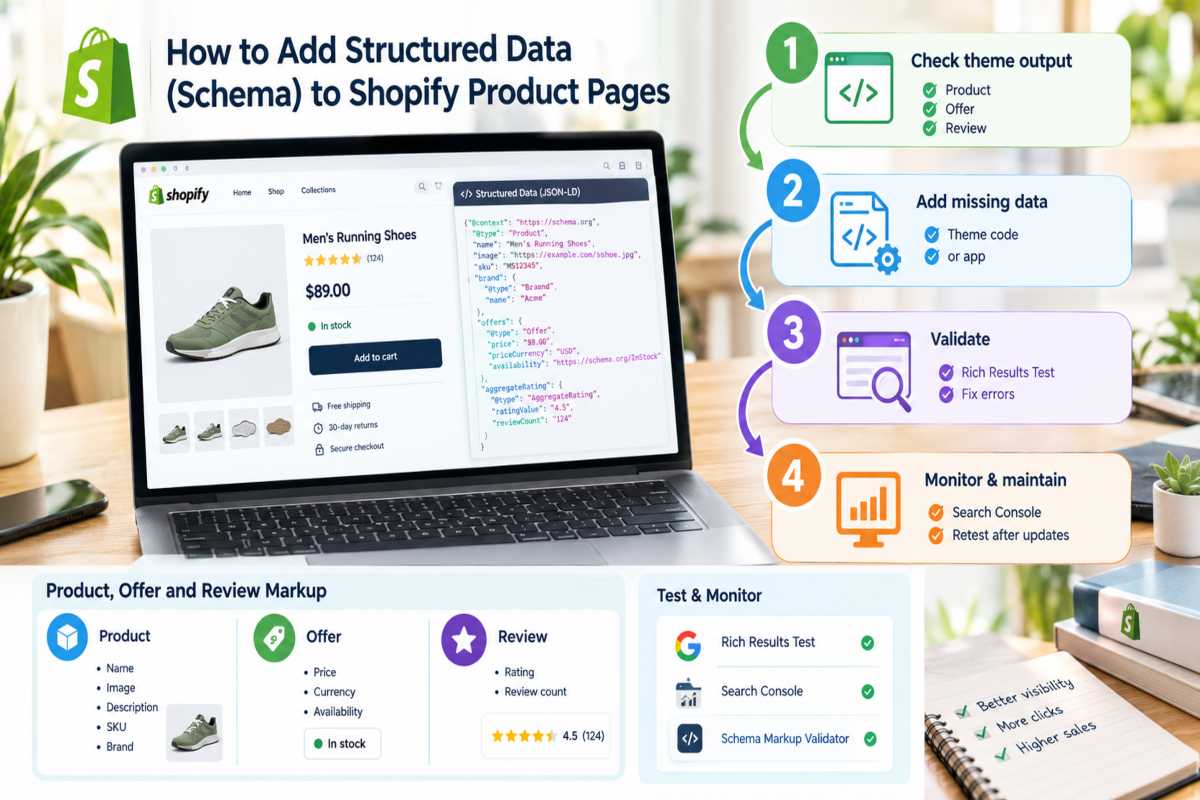
To add structured data to Shopify product pages, first check what your theme already outputs, then fill any gaps through your theme’s code or a trusted app, and finally validate the result with Google’s Rich Results Test. Structured data is code that labels details such as price, availability and ratings so search engines can read them without guessing. Google says Product markup can make a page eligible to show price, stock status and review ratings in search results, although it does not guarantee they appear.
Product, Offer and Review markup
Three pieces of markup matter on a product page, and Google recommends writing them in JSON-LD. Product markup describes the item itself: its name, image, description, SKU and brand. Offer markup, nested inside Product, covers the price, currency and availability, so searchers can see whether the item is in stock. Review markup, usually an aggregate rating, reports the average score and the number of reviews.
Only mark up what shoppers can see on the page. A rating in the code with no reviews visible, or a price that differs from the one displayed, breaks Google’s guidelines and can lead to the rich result being withheld. Keep values dynamic so they update when you change a price or sell out of stock.
What your theme already outputs
Most current Shopify themes already output Product and Offer markup automatically. Shopify’s Liquid templates include a structured data filter that themes use to print the product’s name, image, price and availability into the page code, so a new store often has the basics in place without any work.
Review ratings are different. They normally come from your reviews app, which adds its own rating markup. Problems start when the theme and an app both output Product markup, because the two versions can conflict or repeat. View the page source or run a test to see where each block comes from, and keep a single source for each type of data. If a field is missing, such as brand or SKU, ask your developer to extend the theme’s existing markup, and duplicate the theme before editing so you can roll back. Hand-coding a second block on top of the theme’s output is the most common way to cause errors.
Testing with the Rich Results Test
Test every change in Google’s Rich Results Test by pasting a live product URL and running the check. The report lists the structured data it detected, such as Product snippets or Merchant listings, and separates errors from warnings. Errors, like a missing price or name, can stop the page from qualifying for rich results, so fix them first. Warnings point to optional fields like brand or reviews, which are worth adding but not urgent.
Once the markup is clean, monitor it in Google Search Console, where the product-related reports under Enhancements show valid items and flag new errors after theme or app updates. Retest after any theme change, because updates can quietly overwrite or duplicate your markup. You can also run a URL through the Schema Markup Validator to check general syntax.
On-Page SEO Strategy for Shopify Product Pages
A sound on-page strategy for Shopify product pages gives every product one URL and one primary keyword, keeps variants on that single URL, and sets a clear rule for products that are sold out or discontinued. This stops your own pages from competing and keeps ranking signals concentrated on the pages you want to win.
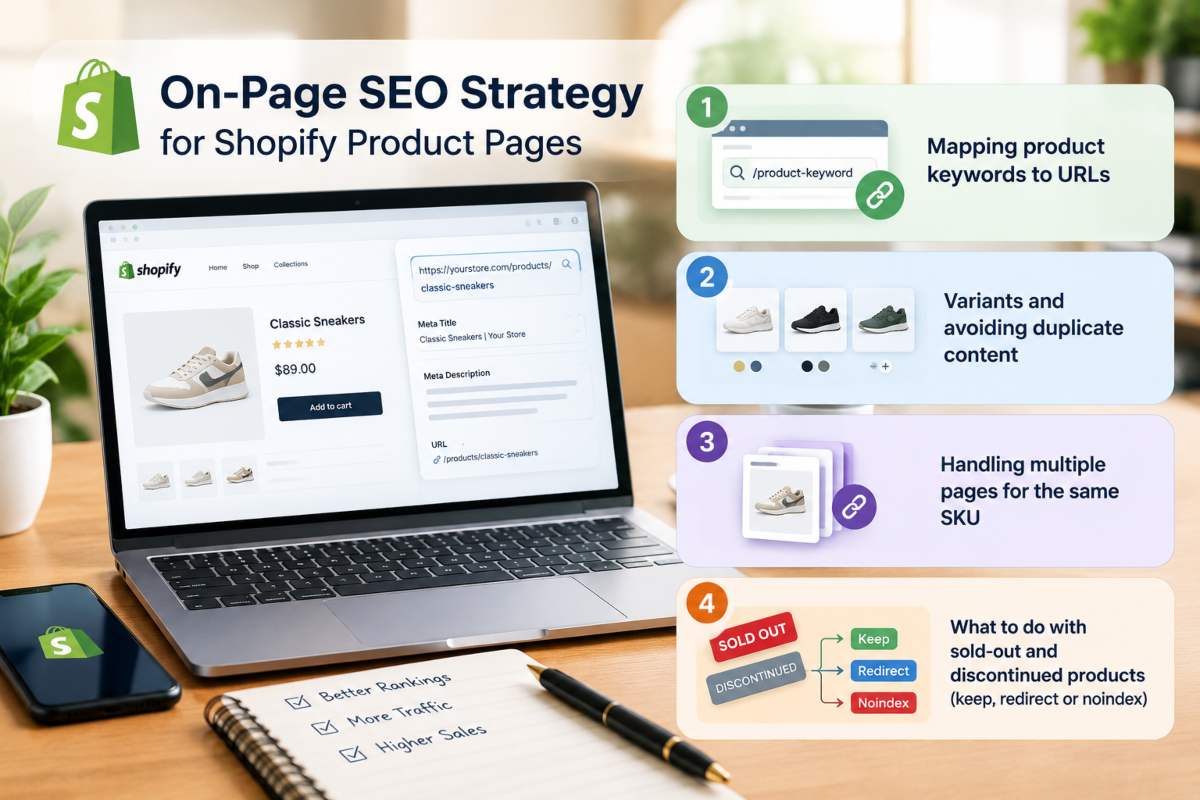
Mapping product keywords to URLs
Mapping means assigning one primary keyword to each product URL and recording it in a simple sheet with columns for the URL, keyword and page type. Choose the keyword by looking at how a shopper would describe that exact item, then confirm that no other product or collection already targets it.
Check the map against real data. In Google Search Console, filter the Performance report by query and look at which pages appear for it. If two of your URLs show up for the same search, one of them needs a different focus or the pages should be merged. Broad category terms belong to collection pages, so product pages should take the narrower phrases that include a model, material, size or use.
Variants and avoiding duplicate content
Keep sizes, colors and similar options as variants on a single product page. Shopify gives each variant a URL with a variant parameter, and the canonical tag on that URL points back to the main product address, so variants don’t create duplicate pages by themselves. The same applies to products reached through a collection path, which also canonicalize to the standard /products/ URL.
Duplicate content comes mainly from the copy. If every variant or similar product shares the same pasted description, search engines see near-identical pages. Write original text for each product, and create a separate page only when a variant is effectively a different product with its own search demand, such as a different model or a distinct material.
Handling multiple pages for the same SKU
Avoid giving one SKU more than one page. Two pages for the same item split links and relevance between them and create near-duplicate content, so neither performs as well as a single page would. If you need both for a real reason, such as a bundle listing or a market-specific page, write distinct copy for each and point the canonical of the weaker page to the stronger one. That change usually requires a small edit to the theme, so duplicate the theme before changing it.
What to do with sold-out and discontinued products
The right choice depends on whether the product is coming back. For temporarily sold-out items, keep the page live, mark it clearly as sold out, show similar products and offer a back-in-stock signup. The page keeps its rankings and links while the stock returns.
For products that are gone for good, use a 301 redirect to the closest replacement product or the parent collection, which you set up under URL redirects in Shopify’s navigation settings. Match the redirect to the product, because Google has said that redirecting removed pages to irrelevant destinations can be treated as a soft 404. If a page has no traffic, no links and no replacement, removing it is acceptable.
Use noindex sparingly, for pages customers may still need but searchers shouldn’t find, such as private, wholesale or duplicate listings. It requires a theme edit or an app, and it should not be applied to products that are only out of stock for a while.
How to Bulk Update SEO on Shopify Product Pages
You can bulk update SEO on Shopify product pages in three ways: Shopify’s built-in bulk editor for quick changes, a CSV export and import for large batches, or an app for rule-based edits across a big catalog. Start with the lightest method that fits your catalog size, and test on a small group of products before changing everything.
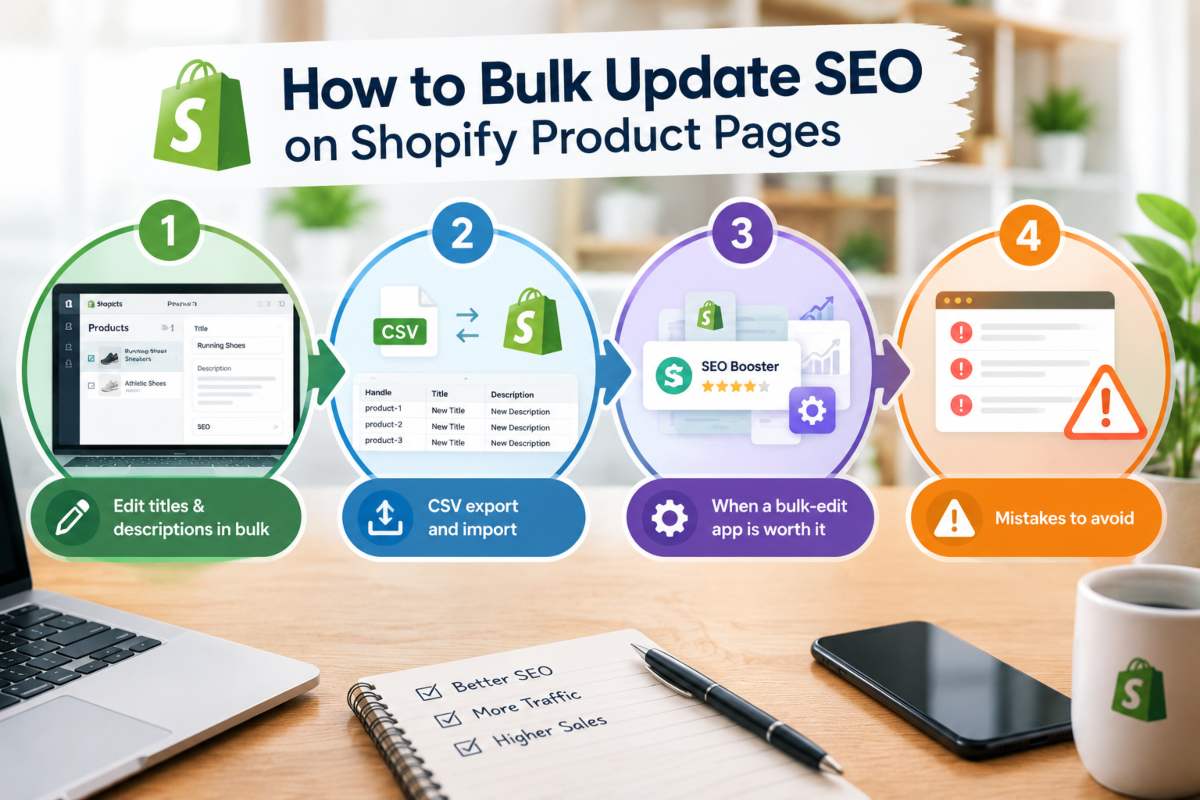
Editing titles and descriptions in bulk with the product editor
Shopify’s bulk editor lets you change many products on one screen, like a spreadsheet. Go to Products, select the products you want, and choose the bulk edit option. Use the column controls to add the search engine title and description fields, then type directly into each cell and save.
This method suits catalogs of a few dozen to a few hundred products, or any time you are fixing a single group, such as one collection. Sort or filter the list first so you edit related products together, and write each title and description for its product. Handle your best sellers one by one, because those pages carry the most traffic and revenue.
CSV export and import
A CSV export and import is the best route when you need to edit large numbers of products or work in a spreadsheet tool. In the Products section, export the products you want as a CSV file, open it in Excel or Google Sheets, and edit the SEO Title, SEO Description and Image Alt Text columns. Save the file carefully and import it back into Shopify, choosing the option to overwrite existing products that share the same handle.
The exported file also serves as a backup of your current copy, so keep an untouched version before you start. Leave the Handle column exactly as it is. Shopify uses the handle to match each row to a product, so changing it creates a new product instead of updating the old one. Import a small test file of five or ten rows first and check the results in the admin before uploading the full catalog.
When a bulk-edit app is worth it
A bulk-edit or SEO app is worth installing when your catalog is large enough that manual or spreadsheet edits become impractical, usually in the thousands of products, or when you need ongoing rule-based updates. Apps can apply templates that pull in the product name, type or vendor, update alt text across all images, and rerun the rules as new products arrive.
For a small or mid-sized store, built-in tools are usually enough, and every app adds some code to your store that can affect speed. If you do use one, choose an app that lets you preview changes before applying them and that lets you undo the update. Use the template for the long tail of low-traffic products and keep hand-written copy for your most important pages.
Mistakes to avoid when editing in bulk
The most damaging bulk-edit mistake is overwriting good copy with weaker copy. Back up your current titles and descriptions before any import or app run so you can restore them if something goes wrong. Changing handles in a CSV is the second most common error, because it creates duplicate products, and changing handles in the editor without redirects breaks existing links.
The third is making every title identical in structure, with nothing that separates one product from another. Google’s own guidance on title links advises against repeated or boilerplate titles and says it may rewrite titles it finds unhelpful. Each page needs its own product name and at least one detail that sets it apart. Also watch length, since an automated template can push titles past about 55 to 60 characters and get them cut off in results.
Finally, apply changes in stages. Update a sample group, confirm the fields look right on the live pages, and then roll out the rest. Review the results in Google Search Console a few weeks later to see whether clicks and impressions improved for the pages you edited.
Shopify Product Page SEO Checklist
A Shopify product page SEO checklist should cover content, technical setup and images, and every product should pass all three before it is published. Run through it again whenever you update a product, change themes or install a new app.
Content checklist
Content is what tells search engines and shoppers what the product is, so check it first. A page passes when the keyword, copy and links all work together.
- One primary keyword is assigned, and no other page targets it
- The product title is specific and readable, with one or two defining details
- The description is original and covers features, benefits, materials, sizing or fit, care and delivery
- The primary keyword appears naturally in the first paragraph
- The page title is about 55 to 60 characters and the meta description about 150 to 160, both unique
- Reviews, shipping details and the returns policy are visible on the page
- The page links to its parent collection, related products and any relevant guide
Technical checklist
The technical checks confirm that search engines can load, read and index the page. Google’s Core Web Vitals give you clear targets: a Largest Contentful Paint of 2.5 seconds or less, an Interaction to Next Paint of 200 milliseconds or less, and a Cumulative Layout Shift of 0.1 or less.
- The page meets those Core Web Vitals thresholds on mobile in PageSpeed Insights
- The URL handle is short, lowercase and keyword-based, with no unnecessary changes after publishing
- The canonical tag points to main product URL, and variants stay on one page
- Product and Offer markup validates in Google’s Rich Results Test, with no duplicate markup from the theme and an app
- The page is indexed, which you can confirm with the URL Inspection tool in Search Console
- Unused apps are removed, since leftover scripts slow the page
- Sold-out and discontinued products have a decision: keep, redirect or remove
Image checklist
Images carry much of the page’s weight and a good share of its search value, so they get their own pass.
- File names describe the image, such as black-hiking-backpack-side-view.jpg
- Files are compressed before upload, and the main image is not oversized
- Every meaningful image has its own alt text describing what it shows
- The gallery is short, with the sharpest image first
- Images below the fold load lazily, and the main image does not
Template or worksheet readers can copy for each product
Copy this table into a spreadsheet and fill it in for each product. One row per product also works as your keyword map.
| Field | Your entry |
|---|---|
| Product name | |
| Product URL | |
| Primary keyword | |
| Page title (55-60 characters) | |
| Meta description (150-160 characters) | |
| URL handle | |
| Description written in-house (yes/no) | |
| Parent collection | |
| Related products linked | |
| Image alt text added (yes/no) | |
| Reviews displayed (yes/no) | |
| Shipping and returns shown (yes/no) | |
| Schema validated (yes/no) | |
| Mobile speed checked (date) | |
| Status (live / sold out / discontinued) | |
| Last reviewed (date) |
Common Shopify Product Page SEO Mistakes
The most common Shopify product page SEO mistakes are using manufacturer descriptions, leaving titles and meta descriptions blank or duplicated, stuffing keywords into product titles, and letting oversized images and unused apps slow the page. Each one is easy to find and fix, and correcting them on your best-selling products first brings the fastest return.
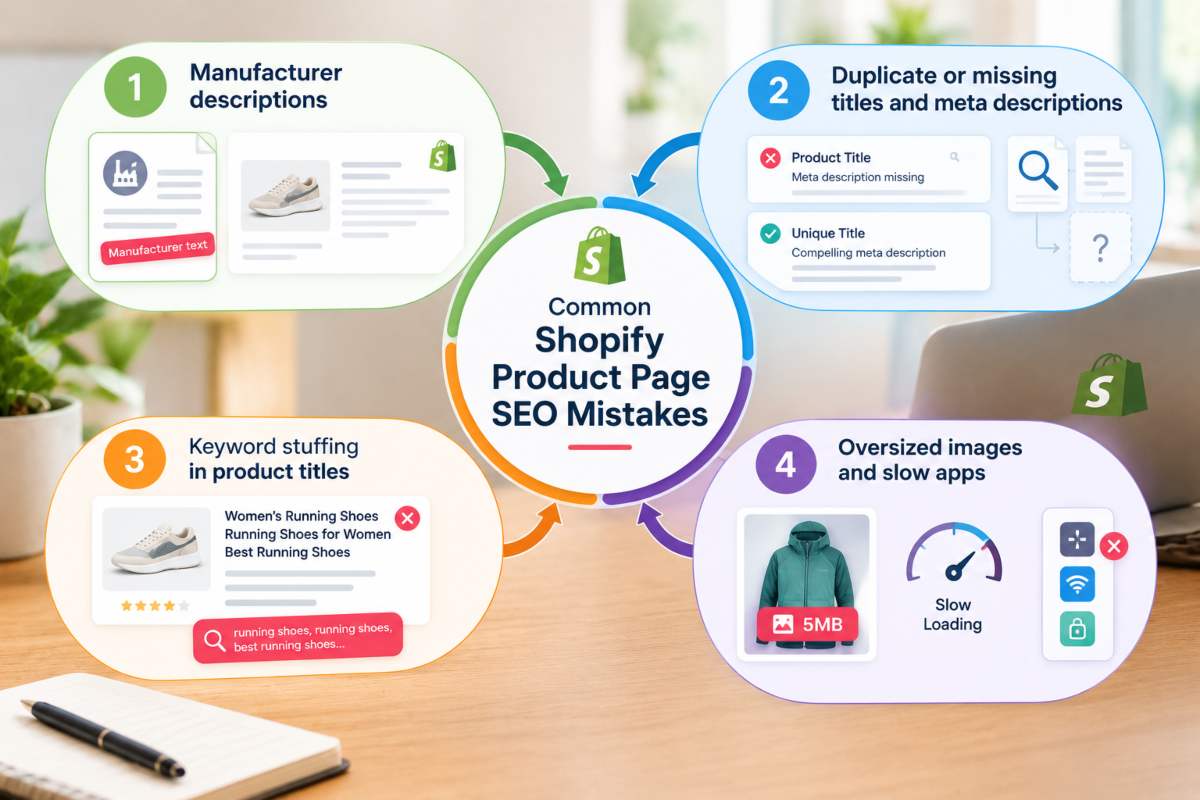
Manufacturer descriptions
Pasting the manufacturer’s description onto your product page is a mistake because the same text appears on every other store selling that item. Search engines then have no reason to rank your version above the supplier’s own site or a larger retailer’s. The page also gives shoppers nothing they couldn’t read elsewhere.
The fix is to rewrite the description in your own words, built around what your customers ask. Explain who the product suits, how it fits or performs, what it is made from, how to care for it and when it ships. Start with your top sellers, where original copy pays back first, and keep the manufacturer’s specifications only where exact figures matter.
Duplicate or missing titles and meta descriptions
Leaving the title and meta description fields blank, or reusing the same wording across many products, wastes the first thing a searcher reads about your page. When the fields are empty, Shopify fills them from the product title and the start of the description, which is rarely written to earn a click. Identical titles across a catalog also make it harder for search engines to tell your pages apart.
Give every product its own pair, using the “Search engine listing” section of the product page. Put the primary keyword near the start of a title of about 55 to 60 characters, and add one detail that sets that product apart. Write a description of about 150 to 160 characters that says what the item is and why to choose it. In Search Console, the Performance report shows which pages already get impressions but few clicks, which makes them good candidates to rewrite first.
Keyword stuffing in product titles
Keyword stuffing means repeating a phrase or adding strings of variations to a title, such as “Buy Cheap Best Hiking Backpack Waterproof Backpack Online.” Google’s spam policies list keyword stuffing among the practices it treats as spam, because filling a page with repeated terms makes it less useful to the reader. In practice it also makes your result look untrustworthy in a list of competing listings.
A better title names the product once, then adds the details a shopper uses to choose, such as size, material, audience or model. “Waterproof 30L Hiking Backpack for Women” says everything the stuffed version did, in a form a person would trust. Let related terms appear naturally in the description instead of forcing them into the title.
Oversized images and slow apps
Oversized images and unused apps are the two most common causes of slow Shopify product pages. A gallery of full-resolution photos forces the browser to download far more than it needs, and apps often add scripts that keep running even after they are uninstalled, which delays how quickly the product appears and responds on a phone.
Compress images before uploading and keep the gallery to the angles that help a buyer decide. Review your installed apps, remove the ones you no longer use, and check your theme’s code for leftover snippets from old apps. Then test a few key product pages in PageSpeed Insights, and compare the results against Google’s Core Web Vitals thresholds, which target a Largest Contentful Paint of 2.5 seconds or less. Retest after every theme or app change so you can see what helped.
How to Measure Product Page SEO Results
To measure Shopify product page SEO results, use Google Search Console to see how your product pages perform in search, then use your analytics to see whether that traffic turns into orders. Search Console shows impressions, clicks and rankings, and analytics shows conversion rate and revenue. You need both, because more traffic only matters if it produces sales.
Search Console queries and clicks by page
Search Console shows which searches bring people to your product pages and how often they click. Open the Performance report, choose Search results, and add a page filter set to URLs containing /products/ to isolate product pages. Select a single product URL to see only that page’s data, then open the Queries tab to see which searches it appears for.
Four metrics tell you most of what you need: clicks, impressions, click-through rate and average position. Rising impressions with flat clicks usually means the title or meta description isn’t persuasive enough. A good position with a low click-through rate points to the same problem. Falling position points to a content, competition or technical issue. Search Console keeps 16 months of data, so you can compare a page against the same period last year and not only against last month.
To judge a change fairly, record the date you edited the page, wait at least a few weeks, and compare the same number of days before and after. Position is an average across every search, so it moves gradually, and a single day’s dip says very little.
Conversion rate and revenue by landing page
Landing page reports show whether the visitors who arrive on a product page actually buy. In Google Analytics 4, open the landing page report under Engagement, filter to the organic search channel, and add the ecommerce purchases and total revenue metrics. Each row then shows how many search visitors entered on that product page and what they spent. Shopify’s own analytics reports offer a similar view of sessions and sales by landing page and by product.
Divide orders by sessions to get a page’s conversion rate, and compare it across your products. A page with strong traffic and a weak conversion rate needs better content, not more links, so look at the description, images, price clarity, reviews and shipping details. A page with a high conversion rate but little traffic is the one to push with stronger titles, internal links and fresh keywords. Tracking revenue alongside rankings keeps Shopify product page SEO tied to results the business can see, and not to rankings alone.
Conclusion
Shopify product page SEO comes down to repeating a few reliable habits on every product: give it one clear keyword, write original copy and a unique title and meta description, keep the images and apps light so the page loads fast, add structured data and trust signals, and check the results in Search Console and your sales reports. The trust signals alone can change outcomes, since Northwestern University’s Spiegel Research Center found that a product with five reviews is 270% more possible to be bought than one with none.
Start with your best-selling products, work through the checklist, and review each page every quarter as stock, prices and search habits change. If you’d rather have specialists handle the optimization across your whole catalog, our SEO services can take it on while you focus on running the store.
Frequently Asked Questions (FAQs)
How do I optimize a Shopify product page for SEO?
Give the product one primary keyword, then write a clear title, an original description and a short keyword-based URL handle. Add compressed images with alt text, a unique meta title and description, and links to the parent collection and related products.
What are the best SEO practices for Shopify product pages?
Target one keyword per product, match the page to buyer intent and keep it fast on mobile. Show trust signals, since a product with five reviews is 270% more likely to be bought than one with none, according to Northwestern University’s Spiegel Research Center.
How do I edit SEO for products on Shopify?
Open the product in Shopify admin, scroll to the “Search engine listing” section and click Edit. Update the page title, meta description and URL handle, then save.
How do I update SEO on many Shopify products at once?
Use the bulk editor for quick changes, or export a CSV and edit the SEO Title, SEO Description and Image Alt Text columns. Leave the Handle column unchanged, then re-import and overwrite existing products.
How should I handle sold-out products?
If the product is coming back, keep the page live, mark it as sold out and offer a back-in-stock signup. If it is gone for good, 301 redirect it to the closest replacement product or the parent collection.
Can I have more than one page for the same SKU?
It’s best not to, because two pages for one SKU split ranking signals and create near-duplicate content. Use variants on a single page, or if you need two pages, give each unique copy and point the canonical to the preferred one.