How to fix a hacked WordPress website, you need to isolate the site immediately, back up the infected files as evidence, remove the malicious code from your themes, plugins and database, reset every password and admin account, then request a review from Google to restore your rankings. The right sequence matters, cleaning malware before locking down access just gives the attacker a chance to reinfect the site before you are done.
Security researchers estimate WordPress sites face over 13,000 attack attempts a day, which is why even well maintained, regularly updated sites still get compromised. A hack is not usually a sign you did something wrong, it is a sign the site needs a faster, more thorough response than most owners are prepared to give it on their own.
This guide walks through every stage of recovery, confirming the hack, identifying which type of attack you are dealing with, removing the malware, restoring access, recovering your Google rankings and closing the gaps that let it happen in the first place. If you’d rather have this handled for you, our team manages ongoing security, cleanup and hardening as part of our wordpress solutions.
Is Your WordPress Site Actually Hacked?
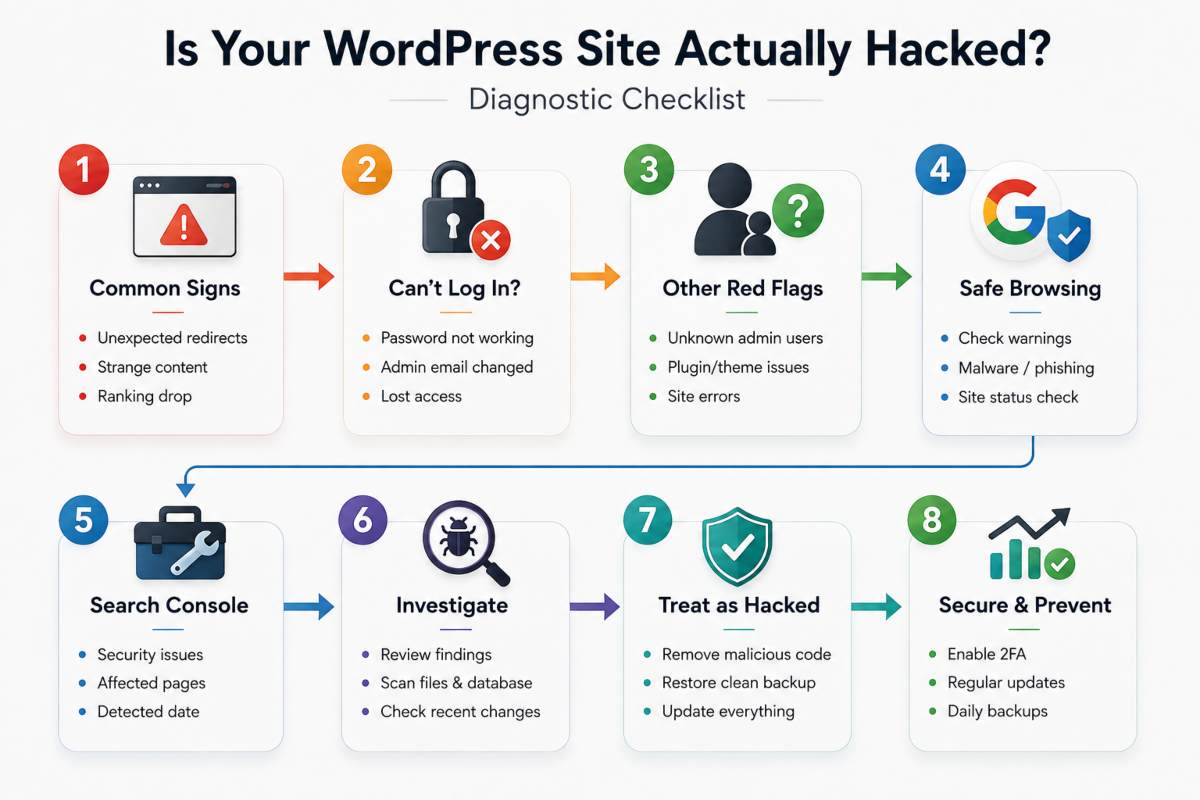
A hacked WordPress site usually reveals itself through a specific set of symptoms rather than vague sluggishness, sudden redirects, a login that no longer works, a Google warning or content on your site you never created. If you are noticing any of these, the safest approach is to treat it as confirmed and start investigating immediately, since delaying even a day can let an attacker do far more damage or spread the infection to additional files.
Common Signs Your Site Was Hacked
The most reliable signs of a hacked WordPress site include unexpected redirects to unfamiliar domains, spam content or foreign language pages appearing in your site’s index, a sudden drop in traffic or rankings, unfamiliar files in your theme or plugin folders and security warnings from your browser or hosting provider. Attackers often design these symptoms to be easy for search engines to detect but hard for you to notice, a redirect that only triggers for mobile visitors or search crawlers, for instance, can run for weeks before an admin ever sees it firsthand.
WordPress Hacked and Can not Log In, What It Means
If your WordPress password suddenly stops working and you are certain you are entering it correctly, it usually means an attacker has changed your credentials after gaining access through a compromised plugin, weak password or exposed admin file.
This is one of the more serious symptoms because it confirms active, ongoing access rather than a passive infection, the attacker is not just leaving malicious code behind, they are controlling the account itself. In this scenario, resetting your password through the standard “lost password” email flow often won’t work either, since attackers frequently change the admin email address as one of their first moves.
Unfamiliar Admin Users or White Screen Errors
Finding an admin or editor account you do not recognize is one of the clearest signs of compromise, since WordPress does not create these on its own, someone with backend access added it, usually to maintain control even after visible malware is removed.
A white screen with no error message is a different kind of red flag,it typically points to a fatal PHP error triggered by corrupted core files or malicious code injected into a theme or plugin and while it can occasionally result from a routine compatibility issue rather than an attack, it should never be dismissed without checking your files and logs first.
If your site is prone to slowdowns or fragile performance even outside of a hack, it is worth having it professionally reviewed, our WordPress Performance Optimisation Services cover exactly this kind of technical health check, so issues get caught before they turn into bigger problems.
How to Use Google Safe Browsing / Search Console to Confirm
Before assuming the worst, confirm the hack using tools built specifically to detect it. Google Safe Browsing status tool lets you enter your domain and instantly see whether Google has flagged it for malware, phishing or deceptive content, a fast, no login way to rule out (or confirm) an attack.
Google Search Console goes a step further, once verified for your domain, its Security Issues report shows the exact type of infection detected, which pages are affected and when Google identified it, giving you a starting point for cleanup rather than a vague warning. Roughly 83% of infected content management systems detected in security research are WordPress sites, which is exactly why Google treats WordPress security issues as a priority in its scanning, confirming through these tools takes minutes and removes the guesswork before you start cleanup.
Common Types of WordPress Hacks
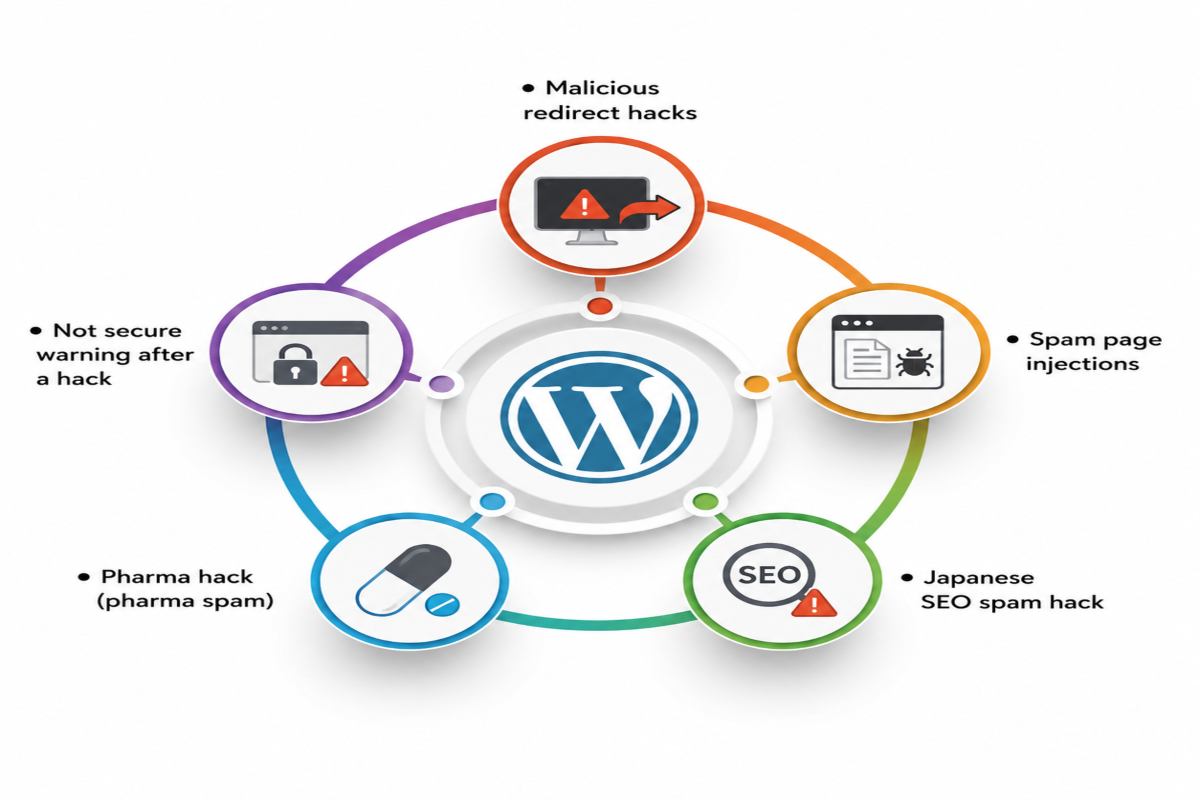
Not every WordPress hack looks the same and the type of attack you are dealing with determines exactly where to look for the infection and how to remove it. Some hacks are built to stay hidden from you while targeting your visitors or search rankings, others announce themselves immediately through browser warnings or defaced pages. Recognizing which category you are in is the fast way to stop wasting time on the wrong fix.
Malicious Redirect Hacks
A malicious redirect hack sends your visitors to an unrelated, often scam or malware laden, website, while the page looks completely normal to you as the logged in administrator.
Attackers frequently configure these redirects to trigger only for specific conditions, such as mobile devices or visitors arriving from search engines, which is exactly why so many site owners have no idea the redirect exists until Google flags it or a customer reports it. The injected code is usually hidden inside .htaccess, theme files or the database itself, making it one of the trickier hacks to fully clear without a thorough file and database review.
Spam Page Injections
Spam page injections happen when an attacker creates dozens or hundreds of new pages on your domain, pages you never wrote and typically never see, since they are often excluded from your visible navigation and sitemap. These pages exist purely to hijack your site existing domain authority, using it to rank spam content in search engines or to build backlinks for unrelated, often illegitimate businesses. Because the pages are usually only discoverable through a site: search or a security scan, this type of hack can run silently for months, quietly damaging your search visibility before you ever notice a problem.
Japanese SEO Spam Hack
The Japanese SEO spam hack is a specific and widely recognized variant of spam page injection, where an attacker floods your site with pages written in Japanese characters, often mimicking legitimate e commerce listings for luxury goods. It is become common enough that it is now instantly recognizable to most WordPress security professionals and it typically indicates outdated plugins or a compromised theme file being used as the entry point. Search engines are quick to detect this pattern and will often flag or deindex affected pages within days, making rapid cleanup essential to limiting the damage to your rankings.
Pharma Hack (Pharma Spam)
A pharma hack injects content promoting pharmaceutical products, frequently for drugs sold illegally, into your site pages, sometimes visibly and sometimes hidden entirely from normal visitors while still being crawled and indexed by search engines. This is one of the most damaging hack types for SEO specifically, since search engines treat pharma spam as a serious trust signal violation and can blacklist or heavily penalize an affected domain even after the content is removed, requiring a formal review request to fully recover.
“Not Secure” Warning After a Hack
If your browser suddenly shows a “Not Secure” warning despite having a valid SSL certificate, the cause is almost always mixed content or injected scripts rather than a certificate problem, attackers frequently insert code that loads resources over an insecure connection, which triggers browser security warnings regardless of your certificate validity.
This is also one of the clearer signals that the vulnerability sits deeper than a single file, often pointing to server level or hosting environment weaknesses rather than just a compromised plugin. Sucuri research has found that WordPress accounted for 83% of the infected content management systems it identified in a single year, underscoring how often the platform popularity, not its core code, makes it a target. If your current hosting setup is not giving you server level security monitoring or hardening, it is worth reviewing our WordPress hosting Services, built specifically to close these gaps before they turn into a full hack.
Immediate First Steps After Discovering a Hack
The moment you confirm your WordPress site has been hacked, your priority shifts from investigation to containment, stopping further damage before you attempt any actual cleanup. These first three actions do not fix the hack, but skipping them is the most common reason a “fixed” site gets reinfected within days.
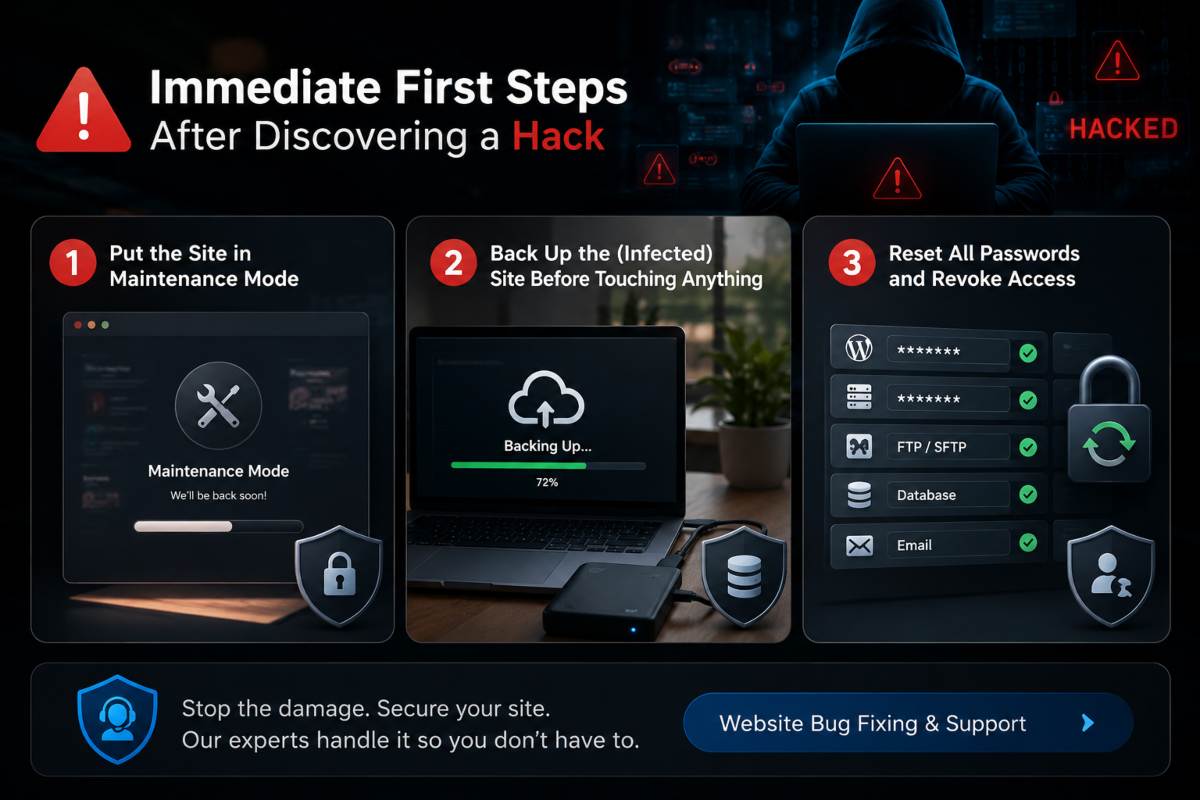
Put the Site in Maintenance Mode
Taking your site offline or switching it into maintenance mode should be your first move, since it stops visitors from being exposed to malware, redirects or spam content while you work and it prevents search engines from continuing to crawl and index infected pages.
This does not undo any damage already done, but it caps the exposure at its current level rather than letting it grow while you diagnose the problem. Most hosting providers and security plugins offer a one click maintenance mode specifically for this scenario, so there rarely a reason to leave a confirmed hacked site publicly accessible even for a few extra minutes.
Back Up the (Infected) Site Before Touching Anything
It feels counterintuitive to back up a site you know is compromised, but doing so before any cleanup gives you a fallback if something goes wrong mid process and preserves a record of the infection in case you need to identify the entry point later.
This backup should include the full file system and database exactly as they are, infected files included, stored somewhere separate from your live hosting environment so it can not be affected by any lingering malicious code. Skipping this step is a common mistake, once you start deleting files, there’s no way to go back if you accidentally remove something the site depends on or if the cleanup itself introduces new errors.
Reset All Passwords and Revoke Access
Hacks routinely expose every credential connected to the site, not just the WordPress admin login, so a full reset needs to cover your WordPress account, hosting control panel, FTP/SFTP, database and the email address tied to your admin user. Attackers who have had access to a site for any length of time often harvest saved credentials or session data, which means a partial reset, changing just your WordPress password, for instance, can leave a door open even after the visible malware is gone.
This is also the point to review every user account on the site and revoke access for anything unfamiliar or no longer needed, since dormant or unrecognized accounts are one of the most common ways attackers maintain long term access.
Containing and stabilizing a hacked site under pressure is exactly the kind of technical, time sensitive work our Website Bug Fixing and Support team handles daily, if you’d rather have an expert manage these first critical steps rather than risk a misstep, that is what the service is built for.
How to Remove WordPress Malware (Step by Step)
Removing WordPress malware means comparing every core, theme and plugin file against a known clean version, deleting or replacing anything that does not match, then cleaning malicious entries out of the database itself, file removal alone is not enough if the infection has already written itself into your site data. The exact method depends on how comfortable you are working directly with code versus relying on a security plugin to do the detection for you, but a thorough cleanup usually combines both.
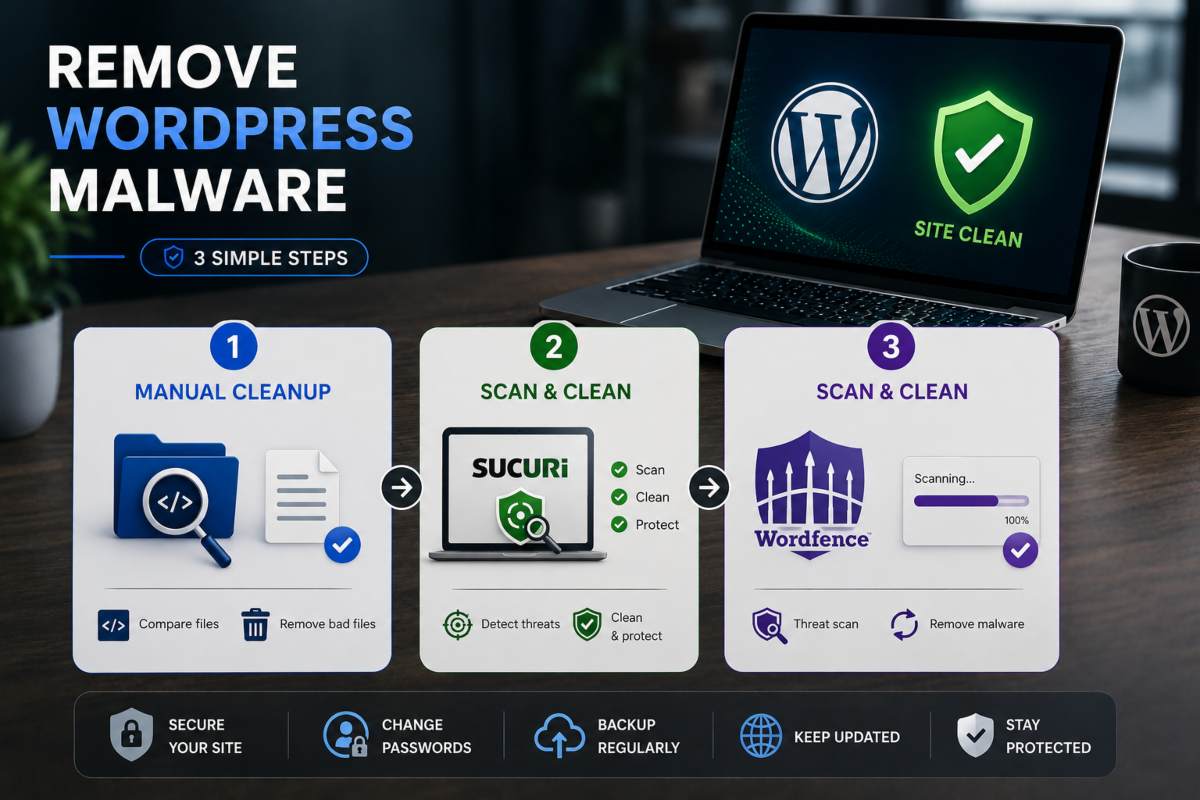
Manual Malware Removal (File by File)
Manual removal involves downloading a fresh copy of WordPress core, along with clean versions of your active theme and plugins and comparing them line by line against what is currently on your server, any discrepancy is a potential sign of injected code.
Malicious code is often disguised inside legitimate looking files like wp-config.php, .htaccess or a theme functions.php, frequently obfuscated with base64 encoding or hidden inside otherwise normal looking functions specifically to survive a quick visual scan. This method is the most thorough way to guarantee a clean site, but it is also the most time consuming and the easiest to get wrong, missing a single infected file is one of the most common reasons a “cleaned” site gets reinfected within days.
Scanning and Cleaning with Sucuri
Sucuri scans your file system and known malware signature database to flag suspicious code and its paid cleanup service can remove confirmed infections along with requesting removal from Google blacklist once your site is clean. It is particularly effective at catching known, previously identified malware patterns quickly, though anything it flags as “unknown” rather than “confirmed malicious” still warrants a manual review before you decide whether to remove it, automated tools are excellent at pattern matching but can occasionally misidentify legitimate custom code.
Scanning and Cleaning with Wordfence
Wordfence works similarly, scanning core files, themes and plugins against its own malware definitions while also monitoring for real time threats like brute force login attempts, which is useful for both cleanup and ongoing prevention. Its free version handles detection and manual removal guidance, while the premium tier adds automatic malware removal and more frequent signature updates, a meaningful difference if you are dealing with a fast spreading or actively evolving infection rather than a static one.
How to Clean an Infected WordPress Database
Attackers frequently inject malicious content directly into your database rather than just your files, hidden admin accounts in the wp_users table, spam links or redirect scripts buried in wp_options or malicious shortcodes inserted into post content are all common patterns that a file only scan won’t catch. Cleaning this requires manually reviewing these tables for unfamiliar entries or using a security plugin database scan feature, then removing anything that does not match content you actually created.
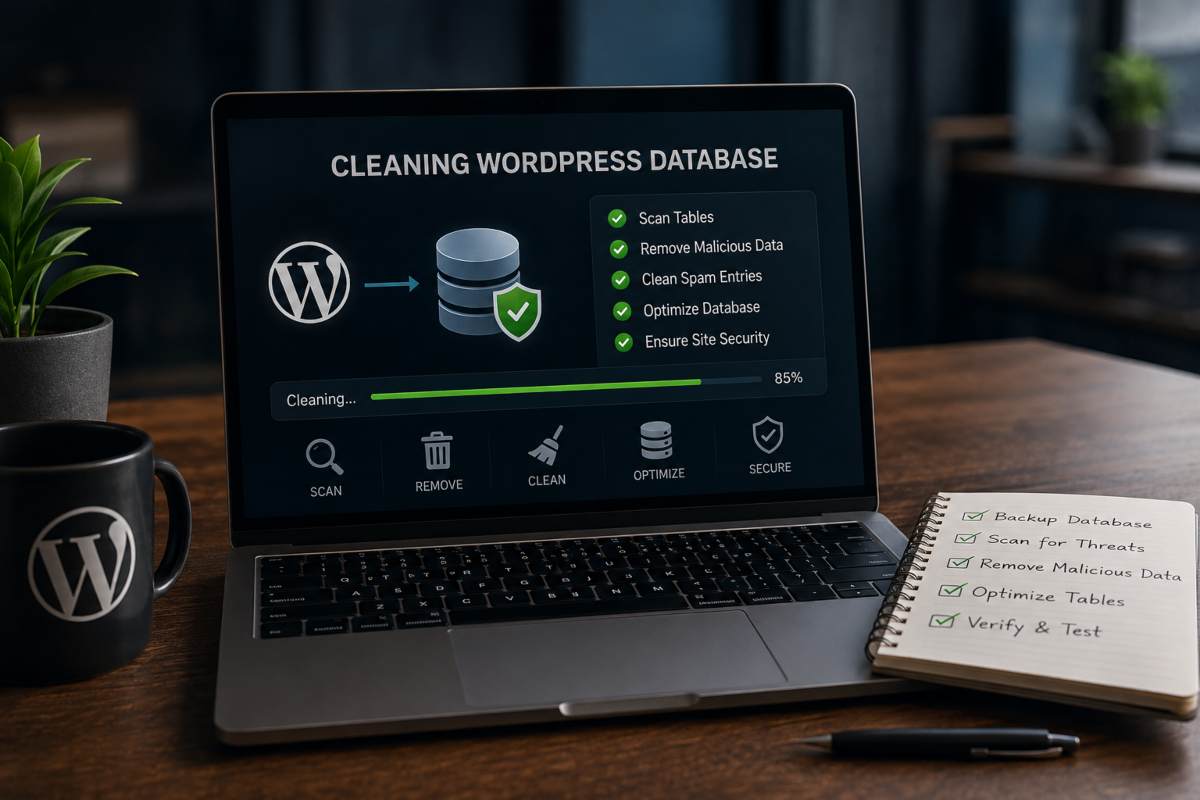
This step is one of the most frequently skipped parts of WordPress malware removal and it is a major reason infections reappear even after a seemingly thorough file cleanup, outdated, unpatched software is the entry point in most cases to begin with, which is why keeping everything current through our Software and Plugin Updates service is one of the simplest ways to prevent the vulnerability that let the attacker in from being exploited again.
Restoring Access & Locking Down Admin
Once the malware itself is removed, the next priority is closing the exact door the attacker used to get in, otherwise cleanup is temporary. Restoring access safely means auditing every account with backend permissions, fixing your own login if it has been affected and tightening file permissions so injected code can not simply reappear the way it did the first time.
Removing Rogue/Unauthorized Admin Accounts
One of the most common ways attackers maintain long term access is by creating a hidden admin or editor account during the initial breach, then using it to regain entry even after visible malware has been cleaned from the site.
Reviewing your full user list under Users in wp admin, not just checking for obviously suspicious usernames, but confirming every single account was created by someone on your team, is essential, since attackers often name these accounts to blend in with legitimate users. Any account you can not personally account for should be deleted immediately and it is worth checking user roles at the same time, since an attacker may have quietly elevated a lower permission account to administrator rather than creating a new one.
Fixing “Can not Log In to Wp Admin” After a Hack
If you are locked out of your own WordPress dashboard following a hack, it usually means the attacker changed your password, admin email or both as one of their first actions, which also means the standard “lost password” recovery flow often won’t work, since it typically sends a reset link to an email address that is no longer yours.
Restoring access in this case means going around wp admin entirely, resetting your password directly through phpMyAdmin or your hosting file manager by editing the wp_users table or using your hosting provider’s built in WordPress password reset tool if one is available. Once you are back in, immediately update the admin email to a secure address and generate a new password rather than reusing anything you used previously.
Resetting File and Folder Permissions
Overly permissive file and folder settings are one of the most effortless ways for malicious code to get reinjected even after a thorough cleanup, since loose permissions let scripts write to files that should otherwise be locked down. WordPress recommended standard is 644 for files and 755 for directories, with wp config.php ideally set even tighter at 440 or 400 where your hosting environment allows it, permissions any looser than this give writable access to more processes than necessary.
According to Sucuri Website Threat Research, WordPress accounted for over 83% of the infected content management systems it identified in a single year and misconfigured permissions are consistently cited as one of the recurring factors that let initial infections persist or return. Checking and correcting permissions across your entire file structure, not just the files that were visibly affected, closes a gap that is easy to overlook once the more obvious malware is gone.
Recovering Your Google Rankings and Reputation
Fixing the malware on a hacked WordPress site is only half the recovery process, if Google flagged your domain during the attack, you also need to formally request a review before the warning disappears and your rankings begin to recover. Skipping this step is why some site owners clean their site thoroughly and still see traffic stay flat for weeks: Google doesn’t automatically re scan and clear a flagged domain just because the malware is gone.
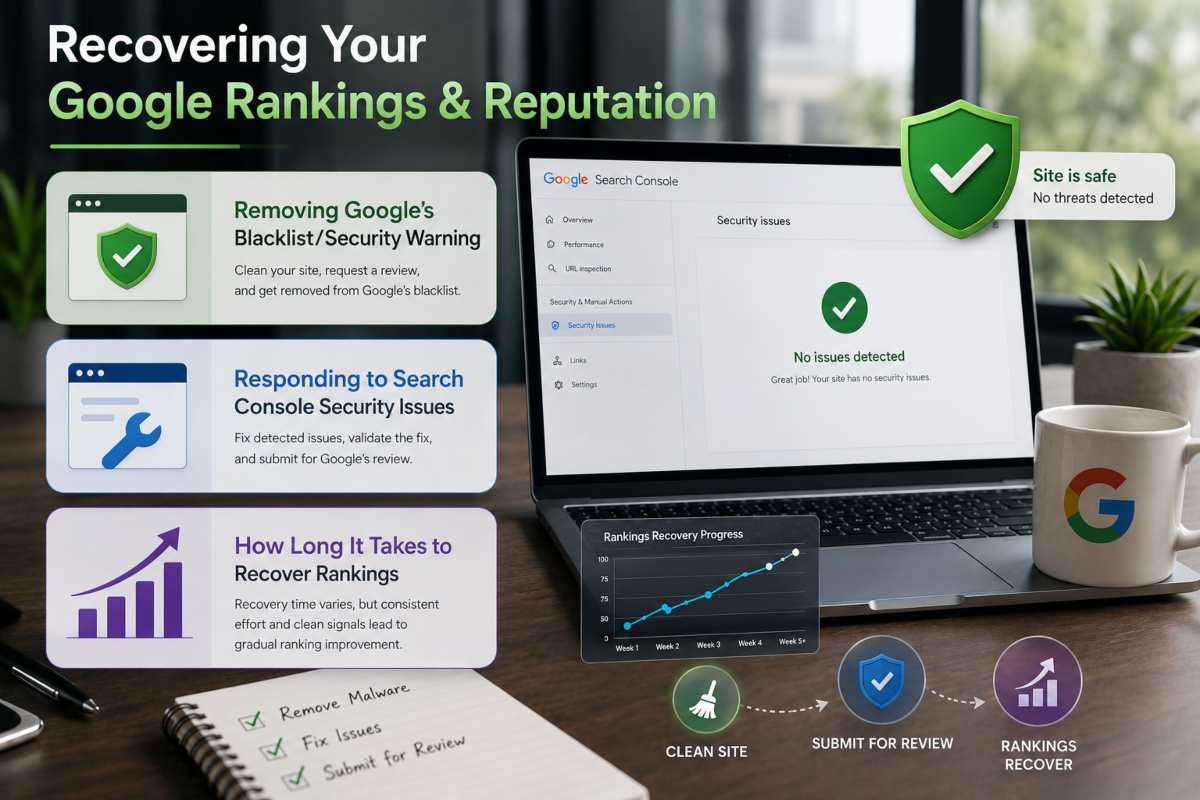
Removing Google Blacklist/Security Warning
Once you have confirmed the site is fully clean, submit a review request through Google Search Console under the Security Issues report rather than waiting for Google to notice the fix on its own. Google will re crawl the flagged pages and, if no threats remain, remove the warning label that is been blocking visitors in search results and in Chrome Safe Browsing alerts. This process typically takes anywhere from a few hours to several days and submitting the request before every trace of malware is removed can actually delay recovery further, since a second flagged scan resets the review timeline.
Responding to Search Console Security Issues
The Security Issues report in Search Console does more than confirm a hack, it tells you exactly what type of infection Google detected, which specific URLs were affected and when the issue was first identified, giving you a concrete list to work through rather than guessing at the scope of the problem.
Addressing every listed URL, not just the ones causing the most visible damage, matters because Google review checks the full set of flagged pages before lifting the warning, leaving even one unresolved can keep the entire domain flagged. Once you have submitted a review request, Search Console will show its status, so you are not left wondering whether the request went through.
How Long It Takes to Recover Rankings After a Hack
Recovery timelines vary considerably depending on how quickly the hack was caught and how thoroughly it was cleaned. Simple infections identified early, with clean backups and a fast Search Console review, can often see the security warning lifted within a few days. More serious cases, deep database infections, multiple compromised URLs or repeated flags from an incomplete first cleanup, can take weeks and rankings themselves may lag slightly behind the warning removal, since Google needs to rebuild confidence in the domain rather than simply verify it is clean.
Sucuri research found WordPress accounted for over 83% of the infected content management systems it tracked in a single year, which is a large part of why Google treats WordPress recovery reviews as a routine, well established process rather than an edge case, most sites that follow through on a genuine cleanup do fully recover both their warning status and their rankings.
A hack is often also the moment site owners realize their WordPress site needed a refresh anyway, outdated design, bloated plugins or a structure that made the attack easier to hide in the first place. If you are rebuilding trust with visitors post recovery, our Website Customization Services can help modernize the site alongside the security work, so what comes back online is stronger than what got hacked.
How to Prevent WordPress From Being Hacked Again
Preventing a repeat WordPress hack comes down to closing the same handful of gaps that let most attacks succeed in the first place, outdated software, weak credentials and a lack of ongoing monitoring. None of these fixes are complicated individually, but together they eliminate the vast majority of attack vectors that bots and hackers actively scan for.
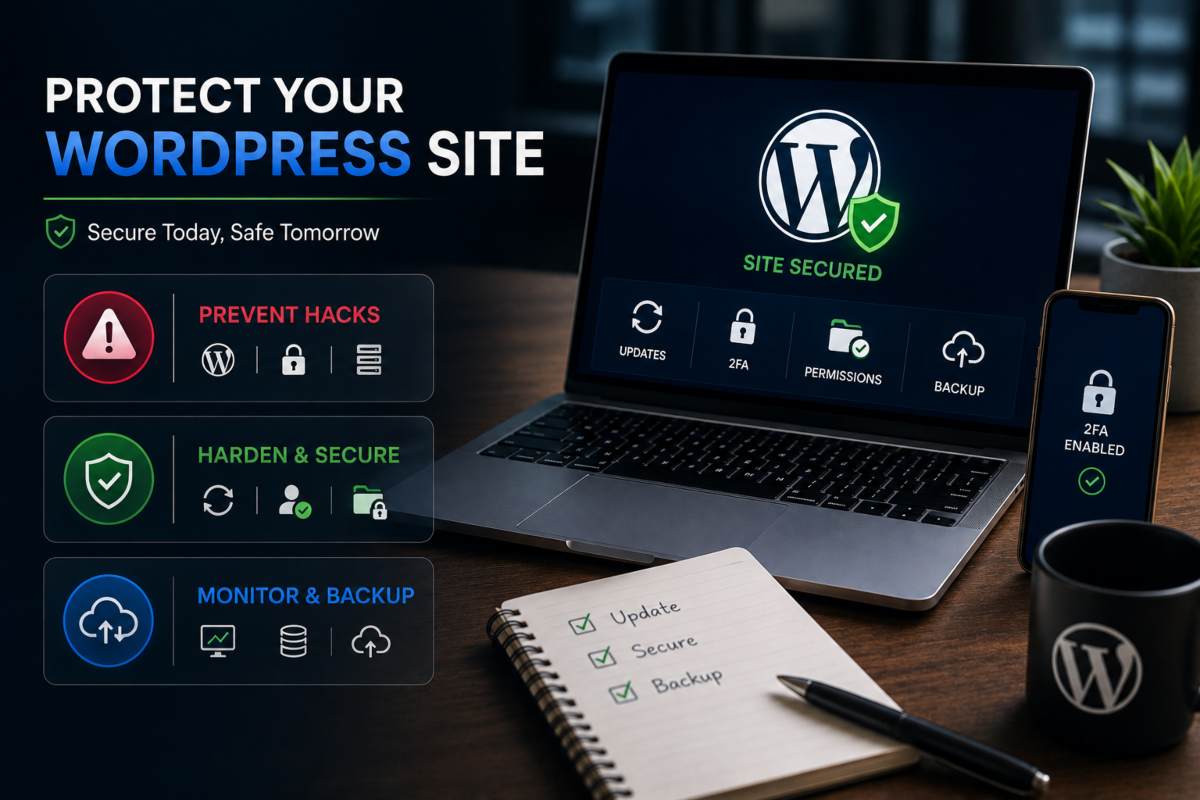
Why WordPress Sites Get Hacked So Easily
WordPress gets targeted so frequently largely because of its scale, not because its core code is inherently weak, it powers a significant share of all websites, making it a high value, high volume target for automated bots that scan the web looking for outdated plugins, weak passwords and known vulnerabilities.
Sucuri Website Threat Research found that WordPress accounted for over 83% of the infected content management systems it identified in a single year, a figure that reflects popularity and inconsistent maintenance far more than any fundamental flaw in the platform itself. Most successful attacks are not sophisticated, targeted efforts, they are automated sweeps exploiting basic, well documented weaknesses that a properly maintained site simply would not have.
Essential Hardening Steps (Updates, 2FA, Permissions)
The single most effective prevention step is keeping WordPress core, themes and plugins updated as soon as patches are released, since the majority of exploited vulnerabilities are ones the developer already fixed, the attack only works on sites that have not applied the update yet. Beyond updates, enabling two factor authentication on every admin account closes off the most common entry point of all, a compromised or guessed password, which alone can not grant access if a second verification step is required.
Removing inactive plugins and themes rather than just deactivating them matters too, since dormant software still contains exploitable code even when it is not actively running and correctly configured file permissions (typically 644 for files, 755 for directories) prevent malicious scripts from writing themselves into the site even if another vulnerability is exploited.
Ongoing Monitoring and Backup Strategy
Hardening reduces the odds of a hack, but monitoring and backups determine how much damage one does if it happens anyway. Automated off-site backups, stored separately from your live hosting environment, mean a compromised site can be restored to a clean state in minutes rather than requiring a full manual cleanup and scheduling them daily or weekly depending on how often your content changes keeps the restore point recent enough to be useful.
Pairing backups with ongoing malware scanning and uptime monitoring means a new infection gets caught within hours instead of weeks, which is often the difference between an immediate fix and a full scale recovery involving Google blacklist removal and lost rankings.
Conclusion
Fixing a hacked WordPress website comes down to a clear sequence, contain the damage, back it up, remove the malware from both files and database, lock down every access point and formally recover your standing with Google once the site is confirmed clean and with WordPress accounting for over 83% of the infected content management systems identified in Sucuri threat research, prevention through regular updates, strong access controls and active monitoring matters just as much as the cleanup itself, since the platform popularity guarantees it will keep being targeted, if your site already been compromised or you’d rather not find out the hard way whether your current setup can withstand the next attempt, IT Leadz handles WordPress security, cleanup and ongoing protection end to end, so recovery is not something you have to manage alone.
Frequently Asked Questions (FAQs)
How do I know if my WordPress site is hacked?
Common signs include unexpected redirects, a login that stops working, unfamiliar admin accounts or a security warning in Google Search Console. Checking Google Safe Browsing tool and Search Console takes minutes and confirms it either way.
My WordPress website has been hacked, what do I do first?
Put the site into maintenance mode, back up the infected files as is and reset every password tied to the site, WordPress, hosting, FTP, database and admin email. Contain the damage before you start any cleanup.
Can a hacked WordPress site be fully recovered?
Yes. A thorough cleanup, removing malicious files, cleaning the database, closing the entry point and requesting a Google review, routinely restores both functionality and search rankings.
How long does it take to fix a hacked WordPress site?
Simple infections with clean backups can often be resolved within hours. More complex hacks involving database corruption or a Google blacklist review can take several days.
Why does WordPress get hacked so easily?
It’s less about weak code and more about scale, WordPress popularity makes it a constant target for bots scanning for outdated plugins and weak passwords. Sucuri research found it accounted for over 83% of infected CMS platforms identified in a single year.