How to speed up a WordPress website without plugins, it can by optimizing at the server, code and asset level directly, upgrading PHP, enabling browser caching through .htaccess, compressing images before upload and cleaning your database manually. Plugins aren’t the only path to a faster site; in fact, according to Portent’s conversion research, every additional second of load time in the first five seconds can drop conversion rates by an average of 4.5%, making manual, lightweight fixes just as valuable as any plugin.
Most WordPress speed advice defaults to “install a caching plugin,” but stacking plugins is often what slows a site down in the first place. This guide walks through the manual alternative: practical, code level and hosting level changes that shave real seconds off load time without adding another dependency to your site. If your WordPress site needs deeper technical work than a DIY fix can solve, our team handles this directly through WordPress solutions.
Why Your WordPress Site Is Slow No Plugins Involved
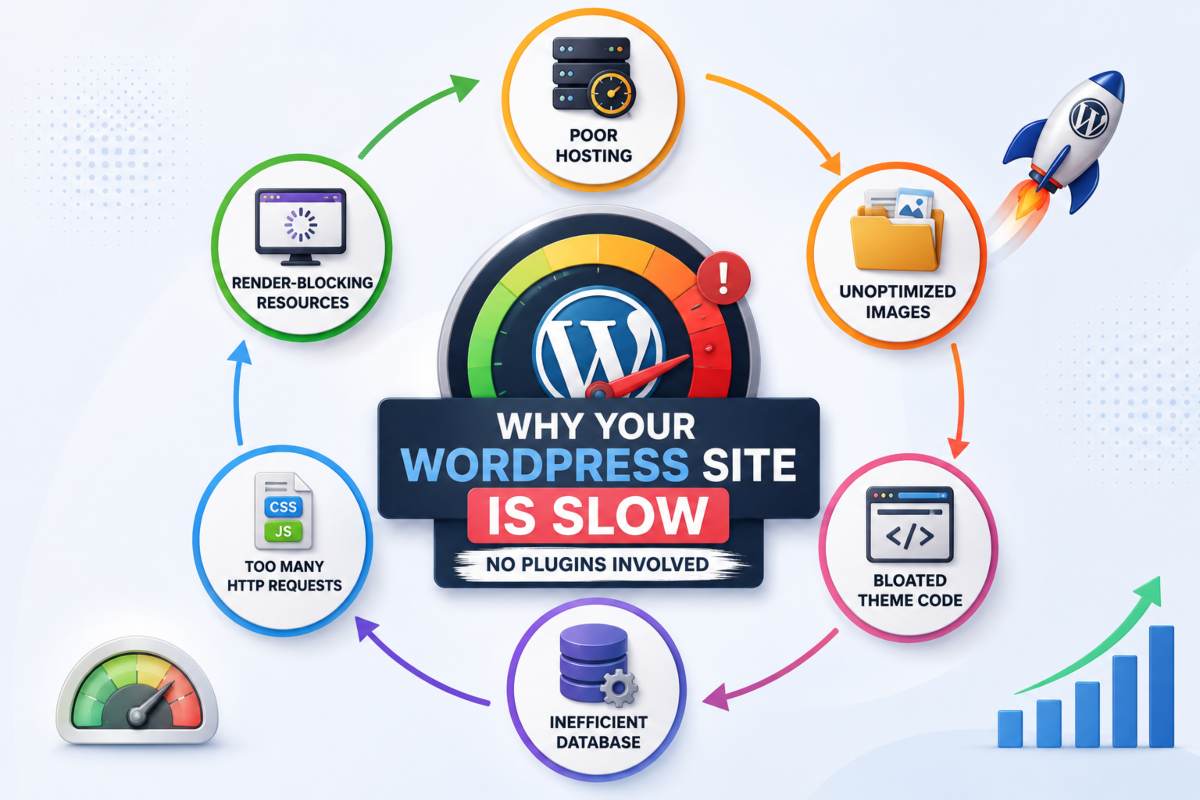
A slow WordPress site is rarely caused by one single issue, it’s usually a combination of unoptimized images, bloated code, weak hosting and an unmanaged database working against each other at once. Before touching any settings, it helps to understand which of these factors is actually dragging your load time down, since fixing the wrong one wastes time without moving your speed score.
Common causes of a slow WordPress site
The most frequent culprits are oversized, uncompressed images, a shared or low resource hosting plan, an outdated PHP version, excessive database bloat from old revisions and transients and heavy themes or page builders that load unnecessary CSS and JS on every page. Often it’s not one of these alone but two or three compounding, for example, a heavy theme on cheap shared hosting will feel slow even with perfectly optimized images.
How to run a speed audit before you start (PageSpeed Insights and GTmetrix)
Run your homepage and a key inner page through Google PageSpeed Insights and GTmetrix to get a baseline score before making any changes, this gives you a “before” number to measure real improvement against. Pay attention to three metrics specifically: Largest Contentful Paint (aim under 2.5 seconds), Total Blocking Time and Cumulative Layout Shift, since these directly affect both user experience and Google’s Core Web Vitals ranking signal. Document these numbers, then re test after each major fix so you know what’s actually working.
If the audit reveals issues beyond a quick manual fix, like server level bottlenecks or a theme rebuild, that’s usually the point where it’s worth bringing in dedicated website speed optimization services rather than trial and error your way through it.
Can You Really Speed Up WordPress Without Plugins?
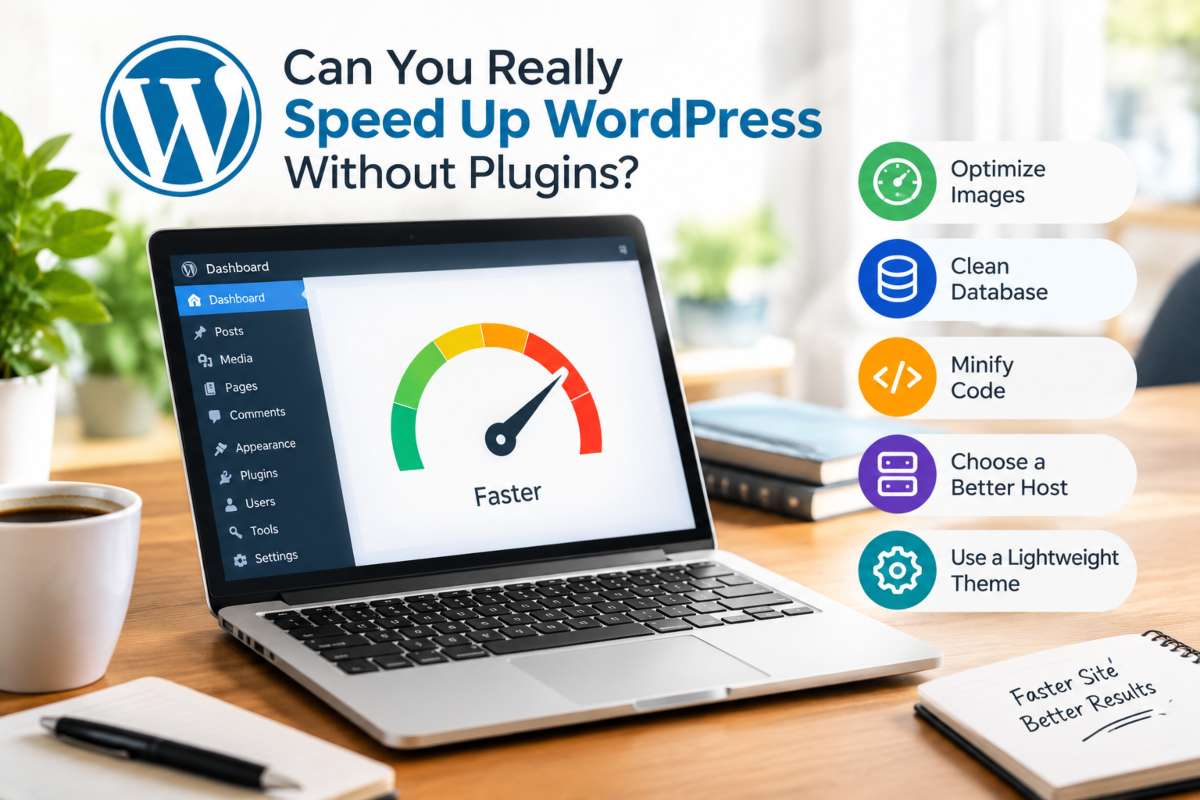
Yes, most of what speed plugins do (caching, minification, image compression, database cleanup) can be done manually through your hosting panel, theme settings or a few lines of code. Plugins add convenience, not capability; nearly every optimization technique they automate has a manual equivalent that gives you more control and one less dependency to maintain.
What plugins actually do vs what you can do manually
Speed plugins essentially package a set of manual tasks into a one click interface: they generate cached static pages, compress and convert images, minify CSS/JS files and clean up database bloat. Each of these can be done by hand, caching via .htaccess rules, image compression through tools like TinyPNG before upload, minification through build tools or manual editing and database cleanup through phpMyAdmin. The trade off is time and technical comfort versus convenience, not capability.
Do you need a caching plugin?
No, not necessarily, manual browser caching set through .htaccess headers is often enough for smaller sites with moderate traffic and simple hosting setups. A caching plugin becomes more useful once you’re running high traffic pages, dynamic content or a server that doesn’t support easy manual configuration, since plugins can layer in page level caching and CDN integration that .htaccess alone can’t replicate.
Keeping whichever plugins you do run current matters just as much as the setup itself, since outdated plugins are a common source of both security risk and performance drag, something we manage directly through our software and plugin updates service.
Server and Hosting Level Fixes
Server level optimization pays off faster than almost any other change because it shortens every request before WordPress or a plugin ever adds overhead. Fixing hosting and PHP version issues first typically produces the biggest speed jump for the least effort of any step in this guide.
Best PHP version for WordPress speed PHP 8.2+ benchmarks
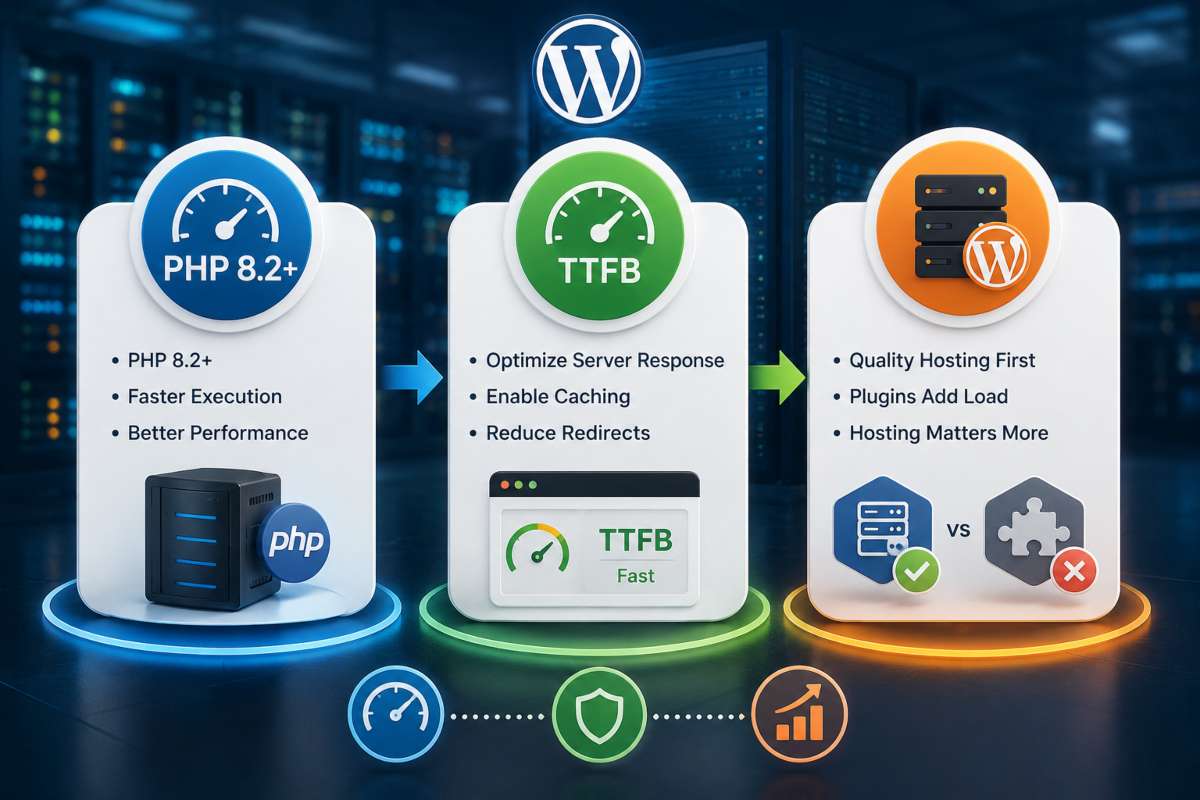
Running an outdated PHP version is one of the most overlooked causes of a slow WordPress site, and it can also contribute to performance and security concerns when dealing with WordPress hacks without plugins. Upgrading to PHP 8.2 can make your site up to 62% faster than running on older PHP releases. Check your current version and OPcache status through your hosting panel or a phpinfo() call, since a disabled OPcache setup often goes unnoticed because the site still loads, just with unnecessary repeated compilation on every request. Most hosts let you switch PHP versions with a single click, though it’s worth testing your theme and any active plugins for compatibility first.
Reducing WordPress TTFB Time to First Byte
TTFB measures how long your server takes to respond before the browser even starts loading the page and a slow TTFB drags down every other speed metric regardless of how optimized your images or code are. The biggest levers here are server response time, database query efficiency and whether your host uses modern protocols like HTTP/2 or HTTP/3, confirming HTTP2/3 support and enabling HSTS can meaningfully cut TTFB by reducing redirect overhead.
Hosting vs plugins, which matters more for speed
Hosting matters more than plugins in almost every case, because no amount of caching or minification can compensate for a slow, overloaded server. A quality WordPress hosting setup handles PHP, database queries and server response time at the infrastructure level, the foundation everything else builds on, while plugins only optimize what happens after the server has already responded.
When server level issues turn out to be the real bottleneck or something on the backend is misbehaving after a hosting change, that’s typically outside a quick DIY fix, our website bug fixes and support team handles those cases directly.
Manual Caching Without a Plugin
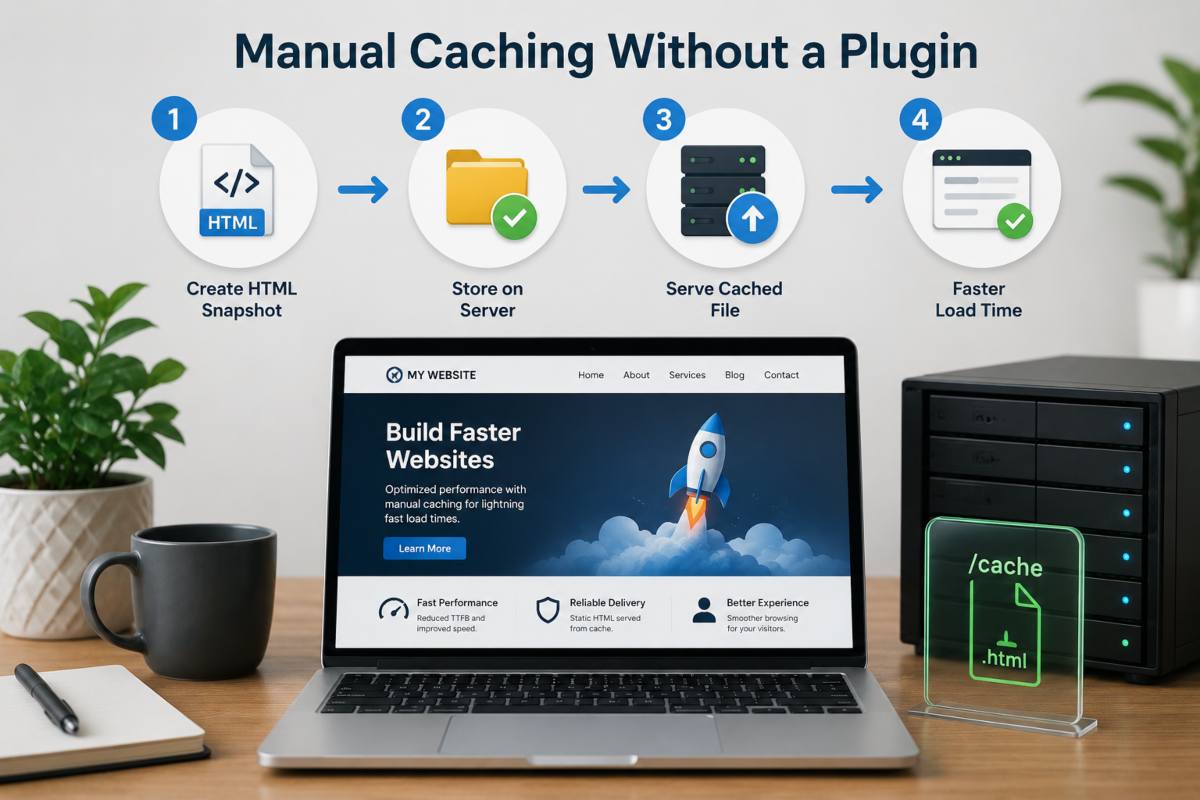
Browser caching can be set up manually through a few lines of code in your .htaccess file, without installing anything, this tells visitors browsers to store static files locally so repeat visits load almost instantly. It’s one of the simplest speed gains available and requires no ongoing plugin maintenance once it’s in place.
Browser caching via .htaccess
Adding cache control headers to your .htaccess file lets you specify how long different file types should stay cached in a visitor browser, typically a month for images and a shorter window, like a day, for HTML. You can extend this further by caching CSS and JS files for a year, since these rarely change between updates; this single change can drastically cut the number of repeat requests hitting your server on return visits.
Leveraging HTTP/2 and HSTS
Enabling HSTS (HTTP Strict Transport Security) forces browsers to load your site over HTTPS automatically after the first visit, which both improves security and shaves off the extra redirect a browser would otherwise make from HTTP to HTTPS. This matters for speed specifically because HTTP/2 and HTTP/3, the faster, more efficient loading protocols, only work over HTTPS, so enabling HSTS lets returning visitors load your site under these protocols immediately instead of waiting through an unnecessary redirect first.
Code Level Optimization
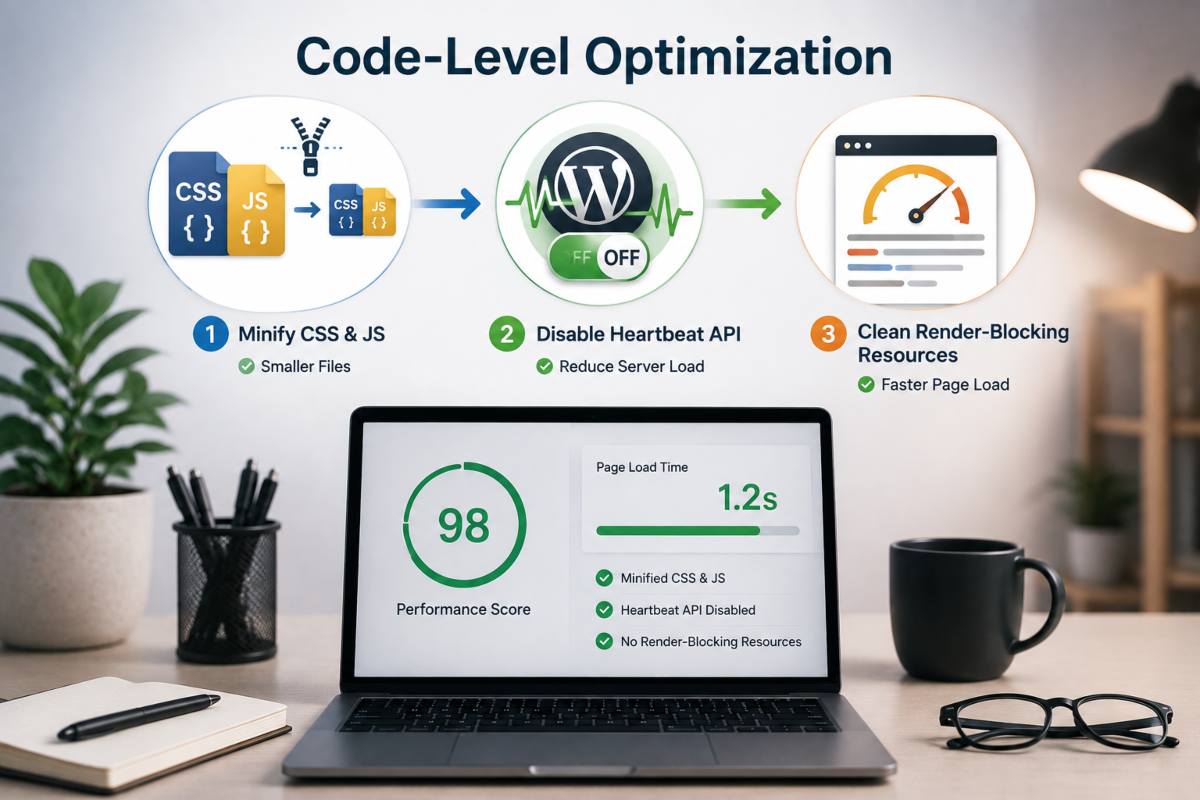
Minifying your code, disabling unnecessary background processes and clearing render blocking resources can shave meaningful load time off a WordPress site without touching a single plugin. These fixes work directly at the file and browser rendering level, so the gains show up immediately in tools like PageSpeed Insights.
Minifying CSS and JS manually
Minification strips out unnecessary whitespace, comments and line breaks from your CSS and JavaScript files without changing how they function, which reduces file size and speeds up download time. You can do this manually using a tool like YUI Compressor or an online minifier before uploading the cleaned files back to your theme, just keep an unminified backup, since minified code is harder to edit or debug later.
Disabling the WordPress Heartbeat API
The Heartbeat API runs in the background to power features like auto save and live post locking, but it sends frequent AJAX requests that can quietly drain server resources, especially on shared hosting. It can be disabled or throttled by adding a short snippet to your theme’s functions.php file, though this is worth testing carefully, since turning it off completely removes auto save and real time editing notifications.
Cleaning up render blocking resources
Render blocking resources are CSS and JavaScript files that the browser must fully load before it can display any content, which delays what a visitor actually sees. Moving non critical JS to load after the page renders (using the defer or async attributes) and inlining small amounts of critical CSS lets the browser paint the visible page faster while everything else finishes loading in the background.
Database Optimization Without Plugins
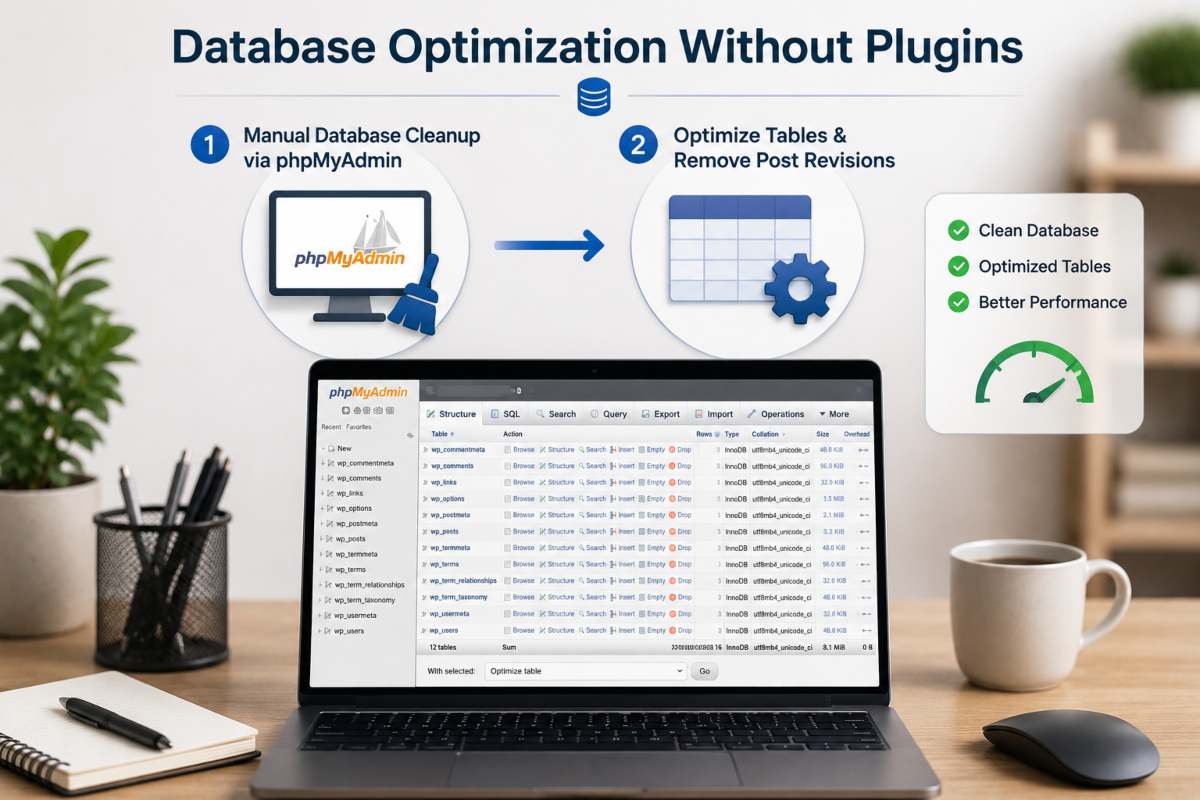
A bloated WordPress database, full of old post revisions, spam comments and expired transients, slows down every query your site runs, even before a page starts rendering. Cleaning it manually through phpMyAdmin removes that dead weight without needing a database plugin to do it for you.
Manual database cleanup via phpMyAdmin
Before making any changes, back up your full database, this is non negotiable, since a mistyped query can break your site with no easy recovery. Once backed up, log into phpMyAdmin through your hosting panel and identify unused data such as old post revisions orphaned metadata, spam or trashed comments and expired transient options, then remove them through targeted SQL queries or the table browser.
Optimizing tables and removing post revisions
WordPress saves a new revision every time a post is edited and on frequently updated sites these revisions can pile up into thousands of unnecessary rows over time. After deleting old revisions and unused data, run the “Optimize Table” function in phpMyAdmin on your core tables, this defragments the database and reclaims overhead space, which keeps queries running efficiently as your site grows.
Image Optimization Without Plugins
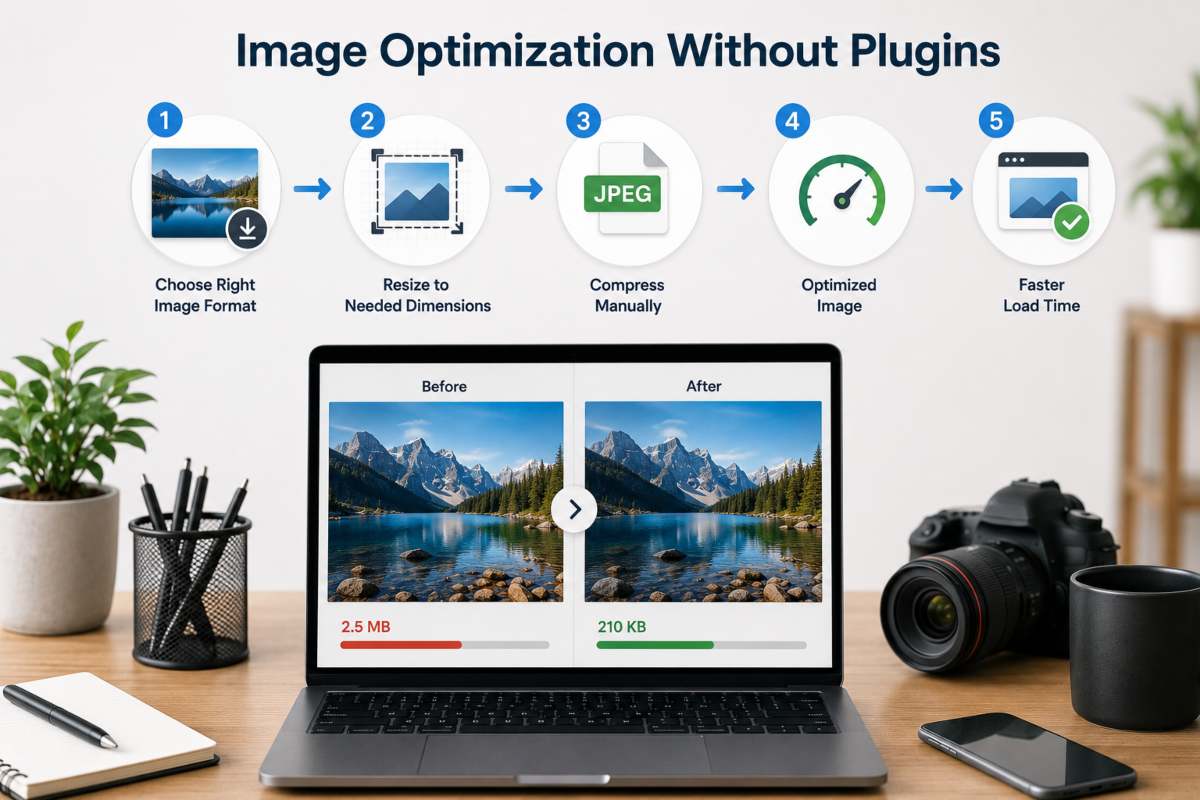
Oversized images are one of the most common and easiest to fix, causes of a slow WordPress site and compressing them before upload can dramatically cut load time without installing a plugin. This single step often delivers a bigger visible speed improvement than several smaller technical fixes combined.
Compressing images before upload (TinyPNG, Squoosh)
Free tools like TinyPNG, Squoosh and ImageOptim compress images significantly before they ever reach your media library, reducing file size without a noticeable drop in visual quality. The key is resizing images to the actual dimensions they will display at, a 1200×800 image forced into a 400×300 space wastes bandwidth on pixels no visitor will see, so compress and resize together, then upload the finished file.
Serving next gen formats (WebP/AVIF) manually
WebP and AVIF are modern image formats that produce noticeably smaller file sizes than JPEG or PNG at the same visual quality and both TinyPNG and Squoosh can convert to these formats during the same compression step. Once converted, upload the WebP/AVIF versions directly to WordPress in place of your originals, most modern browsers support both formats natively, so no fallback plugin is required for typical use cases.
If your site’s overall design is part of what is dragging down speed, heavy layouts, oversized hero images baked into the theme or a page builder generating excess code, that’s often better solved at the design level through our custom web design service than patched piece by piece.
Theme Choice and Page Builders
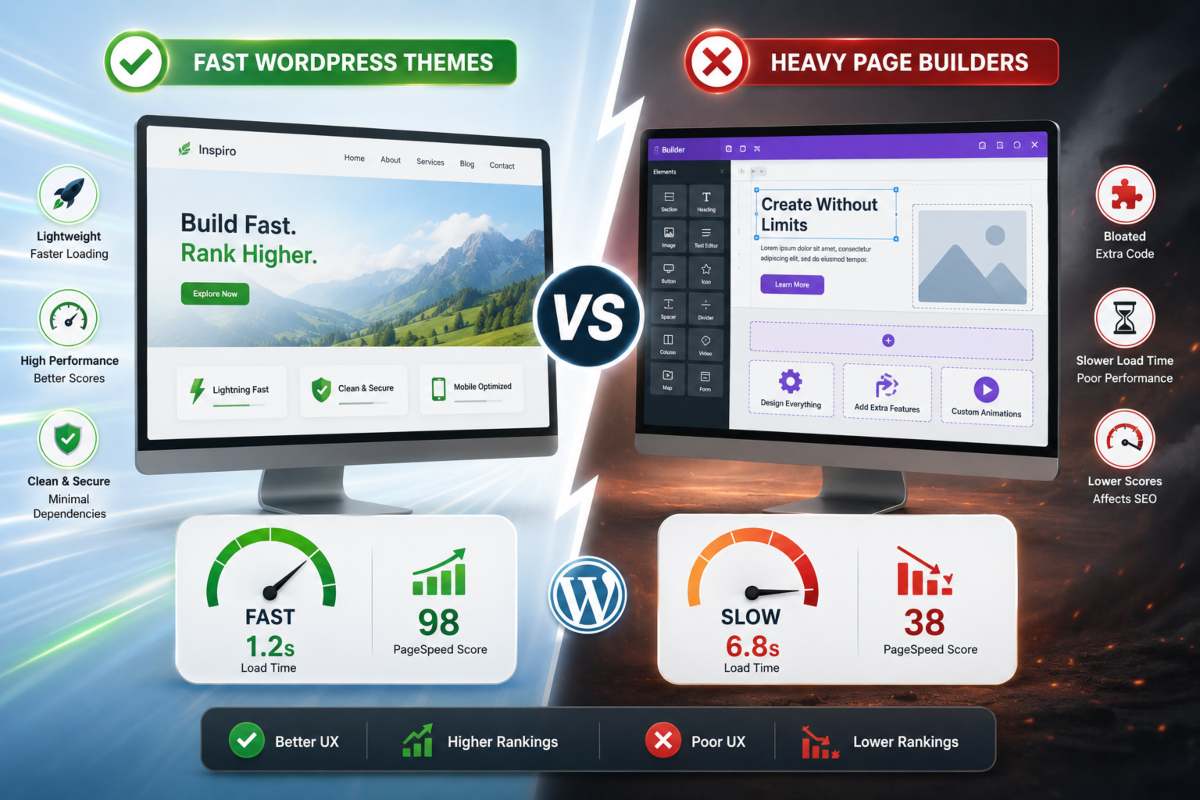
Your theme is often a bigger speed factor than any plugin you could install or remove, since it determines how much CSS, JavaScript and markup loads on every single page. Switching to a lightweight, well coded theme can improve load time more than almost any other single change covered in this guide.
Fastest WordPress themes without plugins
Lightweight themes like GeneratePress, Astra (in its base form) or a minimal block theme load a fraction of the code that heavy multipurpose themes ship by default, since they avoid bundling in unused features, sliders and demo content frameworks. When evaluating a theme for speed, check its unstyled page weight and script count before adding any customization, a theme that’s already heavy out of the box will only get heavier as you build on it.
Why heavy page builders slow you down
Page builders like Elementor, Divi and WPBakery generate significantly more CSS and JavaScript than hand coded pages because they need generic, flexible code to support endless layout combinations, code that loads on every visit regardless of which features you’re actually using. This is why a page built with a drag and drop builder often loads slower than an equivalent page built with the native block editor or clean custom code, even when both display the same content.
Measuring Your Results
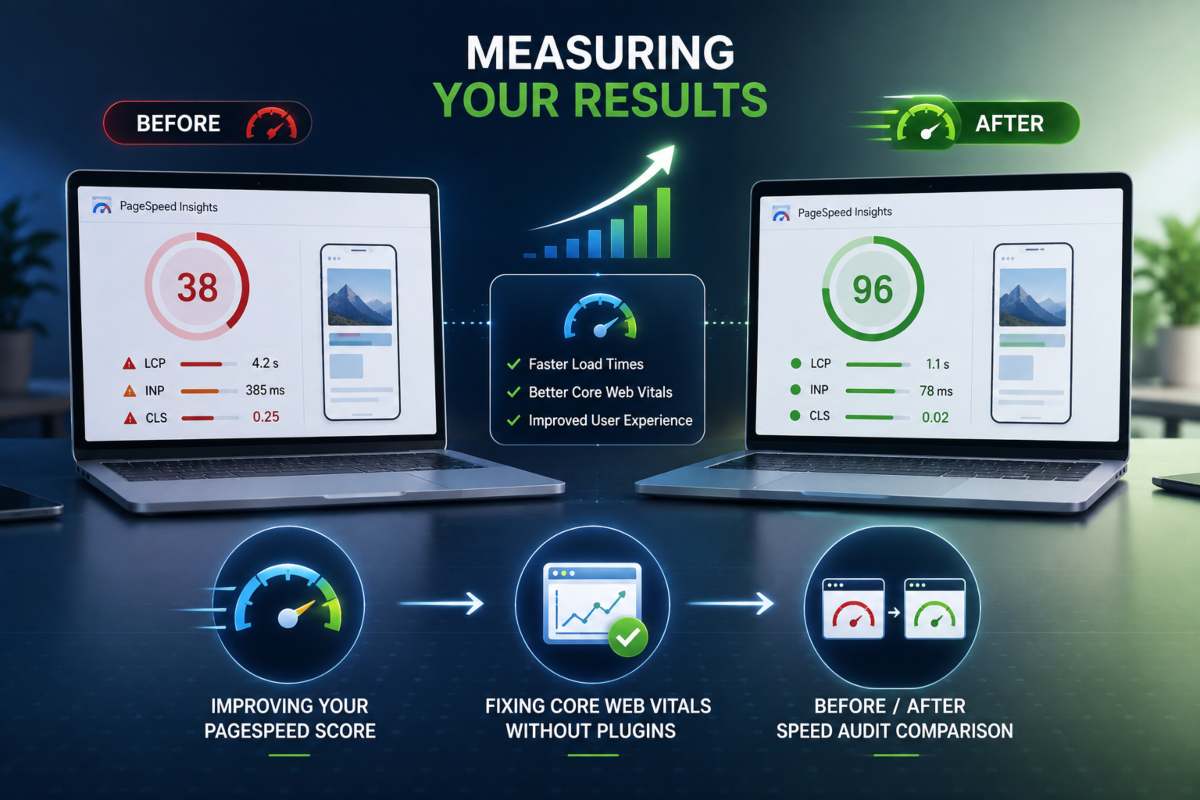
Every fix in this guide only matters if it shows up in your numbers, so re running your speed audit after each major change confirms what’s actually working versus what just felt like it should help. Comparing your before and after scores turns this from guesswork into a measurable process.
Improving your PageSpeed Insights score
Run your site through PageSpeed Insights again after implementing the hosting, caching and image fixes covered earlier and expect to see the biggest jumps in Largest Contentful Paint and Total Blocking Time first, since those respond most directly to server and image optimization. If your score barely moves despite multiple changes, it is a sign the bottleneck lies somewhere untested, often server response time or an unoptimized database.
Fixing Core Web Vitals without plugins
Core Web Vitals, Largest Contentful Paint, Cumulative Layout Shift and interactivity metrics, respond well to the manual fixes already covered: compressed images and better hosting improve LCP, while removing render blocking scripts and setting explicit image dimensions reduces CLS. None of these require a Core Web Vitals plugin; they’re a direct result of the code and server level work done earlier in the process.
Before/after speed audit comparison
Keep your original audit results next to your post optimization results side by side, load time, page size, number of requests and your LCP/CLS scores, since this comparison is the clearest proof of which changes moved the needle. If your numbers still lag despite following every step here, it’s worth checking whether something deeper is at play, for instance, a compromised or malware affected site see our guide on how to fix a hacked WordPress website can quietly tank performance in ways no speed fix alone will resolve.
Conclusion
Speeding up a WordPress website without plugins comes down to fixing the fundamentals, hosting, PHP version, images, code and database, rather than layering on another tool to mask the problem. Every technique in this guide works at the source, so the gains are durable and don’t add another dependency to maintain or update later. If you’ve worked through these steps and your site still is not hitting the speed you need or the fixes feel like more than you want to take on yourself, IT Leadz can handle the technical work directly, from hosting and PHP configuration to database cleanup and design level fixes, so your site loads fast without you having to become a performance engineer to get there.
Frequently Asked Questions (FAQs)
Why is my WordPress site slow with no plugins active?
Plugins are not the only cause of slow load times, outdated PHP versions, weak hosting, oversized images and database bloat can all slow a site down even with zero plugins installed. The bottleneck is usually at the server or asset level, not the plugin count.
Do I need a caching plugin for WordPress?
Not necessarily, manual browser caching through .htaccess is often enough for smaller sites with moderate traffic. High traffic or dynamic sites benefit more from a plugin page level caching and CDN integration.
Is manual speed optimization safe for beginners?
Yes, most fixes involve toggling hosting panel settings or resizing images, with no coding required. Just always back up your database and files before editing anything server side.
Hosting vs plugins which speeds up WordPress more?
Hosting matters more, since it determines server response time and PHP performance at the infrastructure level. No plugin can fully compensate for a slow, overloaded server.
What is the fastest WordPress theme without plugins?
Lightweight, minimally coded themes like GeneratePress or a base block theme load far less CSS and JS than heavy multipurpose themes. Less built in bloat means faster load times before you have made a single manual optimization.